External Identities in Microsoft Entra

This blog article aims to give Microsoft 365 administrators an overview of the External Identities section in Entra (formerly Azure Active Directory or Azure AD).
Entra External Identities refers to a collection of features designed to help businesses securely handle and oversee users who aren’t part of their organization, such as clients or business partners. These features expand upon the B2B (business-to-business) collaboration tools available in Microsoft Entra ID by offering more options for engaging and establishing connections with users from outside your company.
Essentially, it’s about making it easier and safer to interact with people who need access to certain parts of your IT environment but aren’t your employees.
Without a strategy for external identities and guest access, organizations end up with hundreds or thousands of unmanaged guest users in Microsoft 365, unclear ownership and responsibilities, and serious gaps in both security and compliance. Admins often spend a lot of time searching for who invited which guest, whether access is still needed, and how to apply consistent governance across tenants and applications.
Read this case study if you want to find out how machine manufacturer GROB automated guest management in M365.
In this blog post, we take a look at the External Identities features in the Microsoft Entra Admin Center at https://entra.microsoft.com/.
While Entra covers most topics around guests, several important settings can be found in various other Microsoft Admin Centers.
This is where External User Manager can help: it is a comprehensive tool designed to simplify the management of external identities in Microsoft 365 by combining all security and compliance features in one easy-to-use app.
Why are External Identities important for IT admins and security teams?
External users and guest users are often business-critical: partners, suppliers, agencies, and customers all need access to Microsoft 365 resources such as SharePoint sites, Microsoft Teams, or line-of-business applications. At the same time, every external identity is a potential risk to your data if it is not managed properly.
Typical challenges for IT admins include:
- No central overview of all external identities in Microsoft Entra and Microsoft 365
- Inconsistent invitation processes across departments and projects
- Manual onboarding and offboarding of guest users in Microsoft Teams and SharePoint
- Missing or irregular access reviews for external users and external applications
- Compliance and audit requirements (e.g. ISO 27001, internal policies) that demand full control over guest access
Microsoft Entra External ID provides the technical foundation for secure external collaboration. In many organizations, combining these capabilities with a dedicated guest management solution like External User Manager helps to turn this foundation into standardized, automated processes with clear responsibilities and less manual work for IT.
What is possible with External Identities in Microsoft Entra?
You can find the Entra External ID features by following these steps:
Once you have opened Entra or the Entra Admin Center, select the item „External Identities“ in the navigation menu on the left, just below „Identity Governance“.
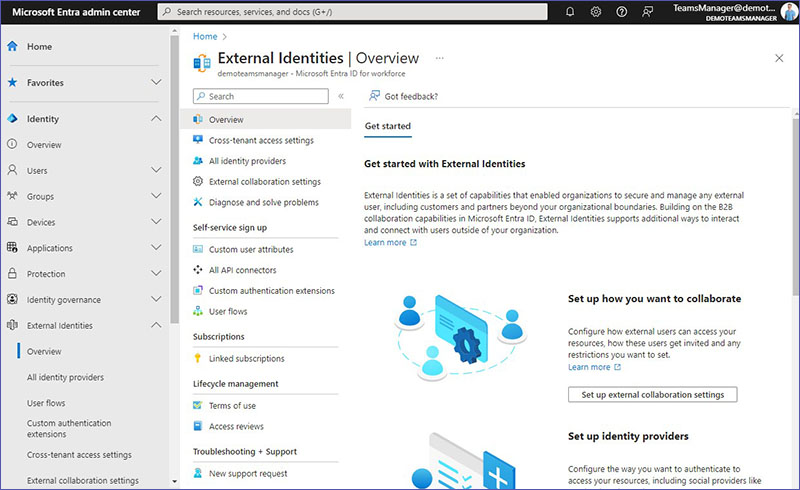
The option “Overview” is the starting point when working with External Identities and gives an outline of the different sub-bullets.
In addition to the main navigation points, there are also three additional topics included and linked to:
Invite exteral users to collaborate
Here you can find a list of all users in your tenant and can invite new external users.
For setting up a customized invitation process with automated approval workflows, External User Manager is the tool for you.
Set up Conditional Access policy to protect your applications & brand
Use advanced security features within Microsoft Entra Conditional Access to control how external users access your applications and data, ensuring they comply with your company’s security standards.
Manage provisioning & access and set up access reviews
Identity Governance offers the tools necessary for managing external users. It streamlines the process of adding (onboarding) and removing (offboarding) these users through Entitlement Management. Additionally, Access Reviews can be set up to verify that only those who still need access have it, ensuring proper control over who gets to access what within your organization.
For provisioning and access management, External User Manager automates the onboarding of external users as well as the offboarding process. Admins can set up lifecycles for external users, including periodic access reviews for continuous compliance or even automated removal from the tenant and the AD / Entra.
Which real-world use cases benefit from Entra External Identities?
Typical scenarios for External Identities in Microsoft Entra and guest management in Microsoft 365 are for example:
- Partner collaboration in Microsoft Teams
External project partners get access to dedicated Teams and SharePoint libraries, while IT keeps control via Entra External ID and Conditional Access. - Customer portals and external applications
Customers sign in with social accounts or existing identities using identity providers and user flows. - Supplier and vendor access
Suppliers work with purchasing and logistics teams in shared workspaces with clearly defined guest access and regular access reviews. - Multi-tenant and group structures
Large organizations with multiple tenants use cross-tenant access and cross-tenant synchronization to keep identities consistent across environments.
In all of these scenarios, Microsoft Entra External ID provides the identity and access management layer. External User Manager can then add standardized processes, automated lifecycles and reporting for guest management in Microsoft 365.
What can you find under “All identity providers”?
Decide on options for how users authenticate their identities to access your resources. This includes using accounts from social networks like Facebook and Google.
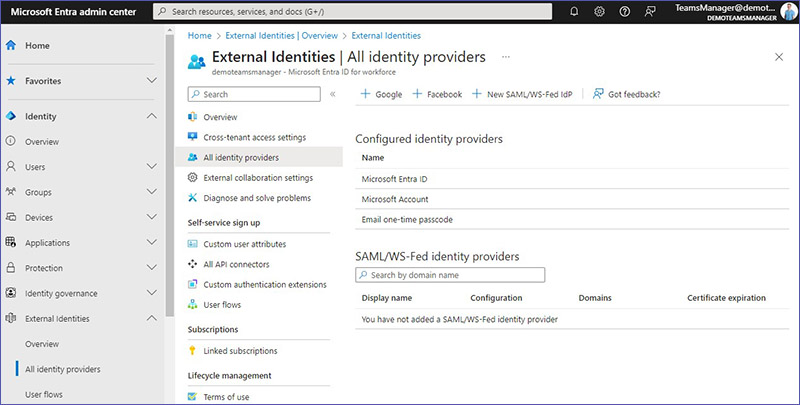
Configured identity providers
Microsoft Entra ID
Users with a Microsoft Entra account can be invited to access your resources through email. They can log in directly without needing further setup. They also have the option to register themselves through Self-service sign-up and User flows.
Microsoft Account
Similar to a Microsoft Entra account, users with a Microsoft account can be invited and log in without extra steps. They too can use self-service sign-up with user flows for registration.
Email one-time passcode
This option is for users who don’t have a Microsoft Entra or Microsoft account. They can access your environment by receiving a one-time passcode via email each time they need to sign in, avoiding the need to create a new account. This method can also be used for self-service sign-up for specific applications within your user flows.
SAML/WS-Fed identity providers
SAML (Security Assertion Markup Language)
This is a standard used for exchanging authentication and authorization data between parties, e.g. between an identity provider and a service provider. By using SAML, users can sign in to multiple applications with one set of credentials managed by their organization. It’s widely used for single sign-on (SSO) processes to access web applications, e.g. bei AWS (Amazon Web Services) or Okta.
WS-Fed (WS-Federation)
Similar to SAML, WS-Federation is a protocol used for federated identity and access management. It allows different organizations to use their existing identity management processes to authenticate users without exposing sensitive information. WS-Fed is often used in corporate environments for seamless access across a range of applications and services. Single Sign-On with WS-Fed is supported by OneLogin, for example.
How can you set up user flows in Entra?
A self-service sign-up user flow lets you set up a system where people outside your organization can register themselves to use your applications. This means you can design a registration process tailored to your needs, allowing external users, like customers or partners, to create accounts and gain access to your apps without needing direct assistance from your IT team.
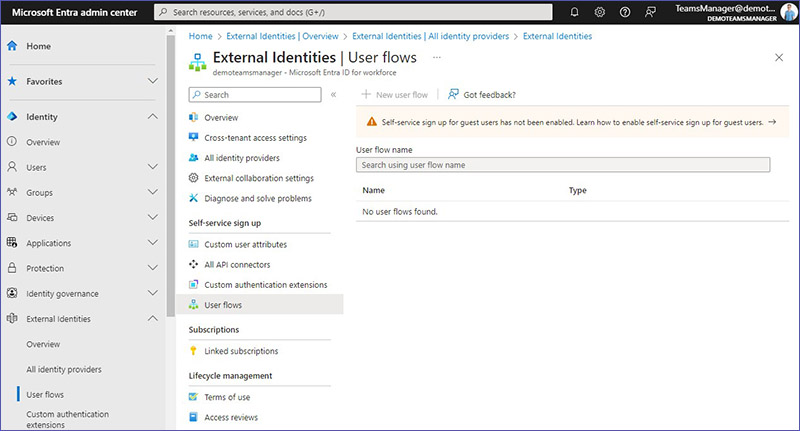
Please note: Self-service sign-up for guests needs to be enabled before you can create user flows.
- Read more about User Flows in Microsoft Learn
User flows are a good way to reduce manual work and support large-scale guest management in Microsoft Entra External ID. Combined with governance rules and lifecycle checks, they help IT admins keep control even when many new external identities are created every day.
What are custom authentication extensions in Entra?
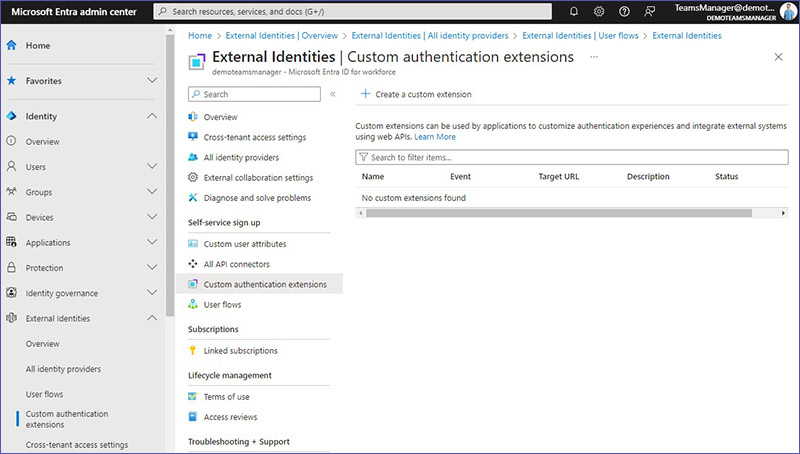
Custom authentication extensions enable you to personalize how users log into Microsoft Entra by connecting it with outside systems. If you want to employ a special method for users to sign in or verify their identity that isn’t provided out of the box, these extensions allow you to build that custom process using web APIs.
- Find out more about Custom Authentication Extensions at Microsoft Learn
This is especially interesting if you want to integrate custom risk checks, internal approval workflows, or additional verification steps for high-risk external applications or privileged external users.
What is possible with cross-tenant access settings?
Organizational Settings
Cross-tenant access settings in Microsoft Entra enable you to tailor how your organization interacts with selected external Microsoft Entra tenants. When dealing with entities that don’t utilize Microsoft Entra, adjust your general collaboration settings instead.
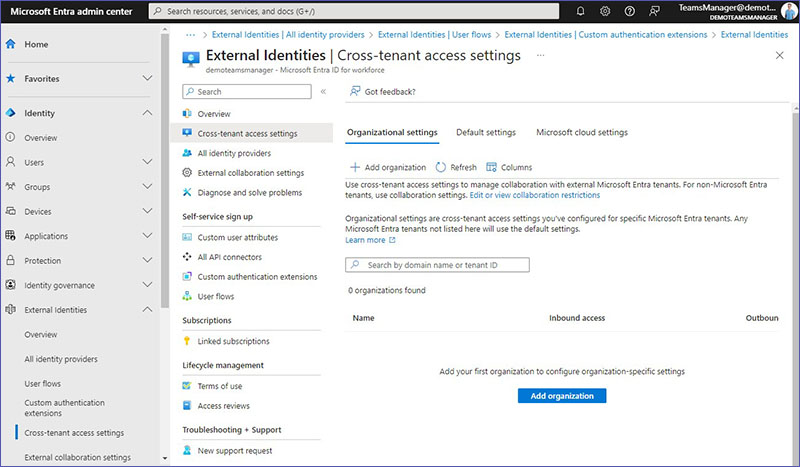
Organizational settings within this context refer to the specific access permissions and policies you’ve established for certain Microsoft Entra environments with which you collaborate. These settings ensure that your collaboration rules are applied precisely to those entities. For any Microsoft Entra environments not explicitly covered by these bespoke settings, your organization’s default settings will automatically apply.
- See what Microsoft Learn has to say about Organizational Settings for Cross Tenant Access
The detailed settings can be found under External Collaboration Settings.
Default Settings
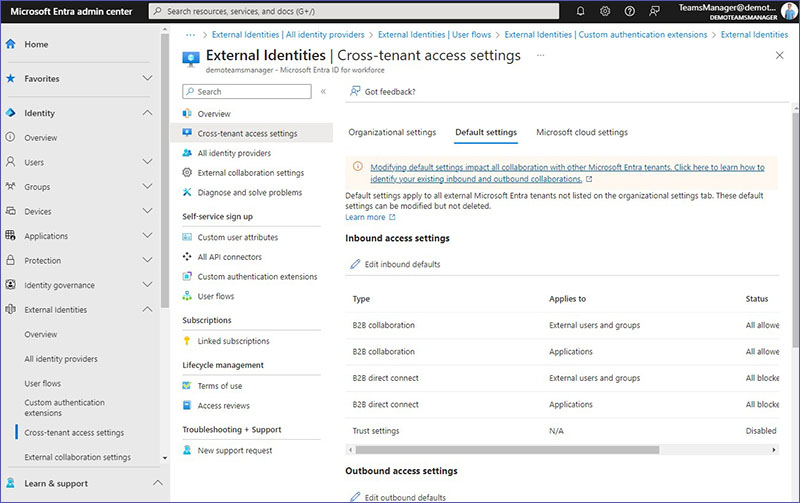
In Microsoft Entra, the default settings act as a baseline for how your organization interacts with any external Microsoft Entra environments that you haven’t specified under the organizational settings tab. While you can change these default settings to better suit your organization’s security or collaboration needs, you cannot remove them entirely.
This ensures there’s always a predefined way your system handles interactions with any external Microsoft Entra tenants not explicitly covered by your customized settings.
- Read more about the Default Settings for cross-tenant access in Microsoft Learn
Default Inbound access settings
This section offers different ways you can manage access for external users into your Microsoft Entra environment, focusing on how to control this access and the type of user experience you want to provide.
Inbound access settings for type: B2B collaboration
Default Inbound Access Settings for B2B Collaboration allow you to work with individuals from outside your organization by letting them use their own credentials to sign in. These external users are treated as guests within your Microsoft Entra tenant. You can either invite these external users manually or enable a self-service registration process, allowing them to request access on their own.
You can specify whether to allow or deny access to these users for certain apps or all apps within your environment and set the order in which primary identity providers and fallback identity providers are used.
Inbound access settings for type: B2B direct connect
This setting is about enabling a more seamless connection with users from other Microsoft Entra tenants, allowing them access to your resources without the need to add them as guests. By opting to “Allow access,” you open the door for users and groups from other organizations to connect with your resources directly, provided the other party has also enabled B2B direct connect.
Trust settings
These settings relate to how your Conditional Access policies treat claims from other Microsoft Entra tenants. Essentially, you can decide whether to trust multifactor authentication, compliant devices, and Microsoft Entra hybrid joined devices from external tenants. This trust is critical for enforcing your security policies when external users access your resources. The default trust settings apply universally, except for those external tenants you’ve configured with specific organizational settings.
To enhance Microsoft 365 security for guest access, you might require multifactor authentication or device compliance across all cloud apps.

Default Outbound access settings
Configure outbound access for your users, detailing how they can interact with external organizations via Microsoft Entra, with a focus on B2B (business-to-business) collaboration and B2B direct connect settings.
- Microsoft Learn has more details about Default Outbound Access Settings
Outbound access settings for type: B2B collaboration
B2B collaboration outbound access settings control whether your users can be invited to collaborate with external Microsoft Entra tenants, essentially allowing them to be added to these external directories as guests. These settings are the default for all external tenants unless you’ve created specific settings with certain tenants. Here, you determine if your users and groups can be invited to these external entities and which external applications they are allowed to access.
Outbound access settings for type: B2B direct connect
These settings manage the ability of your users and groups to access applications and resources hosted by external organizations. The default configuration is applied across all situations where your users interact with external tenants unless you’ve specified different settings for particular external organizations. Although these default settings can be altered to fit your needs, they cannot be entirely removed.
- Take a look at B2B Direct Connect for Outbound Access Settings in Microsoft Learn
B2B direct connect determines your users’ and groups’ access to resources in another organization. For this access to be granted, an administrator on the external side must also have B2B direct connect enabled. When you activate this feature, a limited amount of your users’ information is shared with the external organization to allow for functionalities like user search. The amount of data shared can increase if your users agree to the privacy policies of the external organization.
- Here is another article in Microsoft Learn providing a good overview of B2B direct connect
Default Tenant restrictions
Tenant restrictions are about setting up rules within your network to control if and how your users can use external applications with non-company accounts. This includes both accounts given to them by other organizations and personal accounts they’ve created under other Microsoft Entra tenants. You can specifically allow or deny access to certain external applications.
These default settings are your baseline rules for dealing with all external Microsoft Entra tenants, unless you’ve crafted specific policies for particular tenants. Essentially, you’re setting a general policy that applies universally, with the option to tailor policies for specific external partners or services.
- Learn more about Default Tenant Restrictions in Microsoft Learn
In this context, you can also develop detailed policies targeting specific scenarios, like access permissions for external users and groups or for certain external applications. This gives you more control over how your organization interacts with external digital environments.
Microsoft Cloud settings
Microsoft cloud settings provide the capability to work together with entities located in various Microsoft cloud environments. Once you’ve activated these settings, you’re set to integrate organizations from those specific clouds into your collaboration efforts using Microsoft Entra’s B2B collaboration feature.
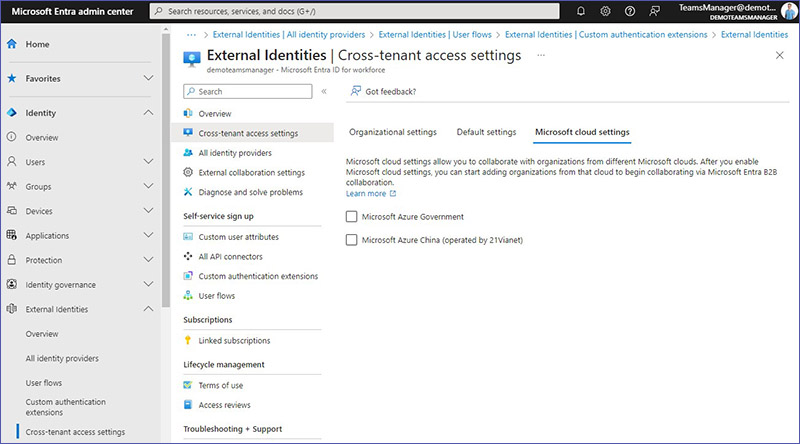
Here are the options you have:
Microsoft Azure Government
This is tailored for U.S. government agencies, providing a cloud environment that complies with U.S. government regulations.
Microsoft Azure China (operated by 21Vianet)
This is a version of Microsoft’s cloud services operated by 21Vianet within China, designed to comply with Chinese regulatory requirements.
By utilizing these settings, you enable your organization to establish and manage secure collaboration channels with partners operating in these distinct Microsoft cloud environments.
- Here is more information about the Microsoft Cloud Settings
How can you configure external collaboration settings?
Configure the rules and permissions for how external users can interact with your organization’s resources, i.e. how they are invited, what they can access, and any limitations on their activities.
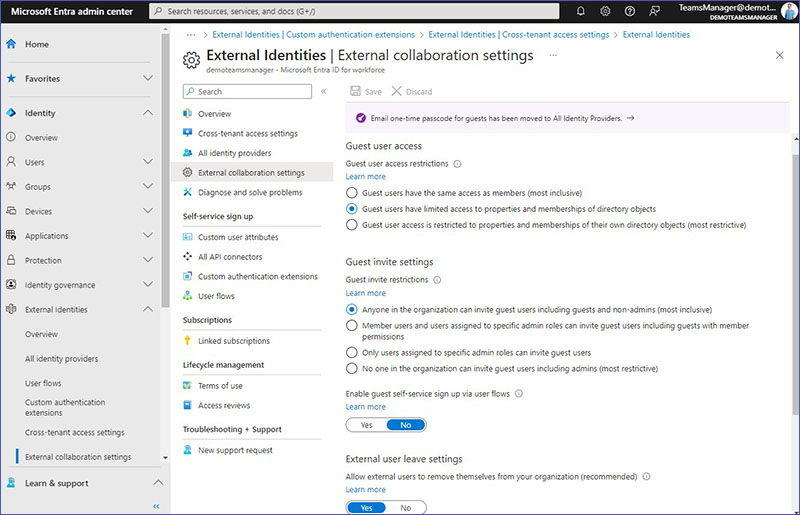
Guest user access
Choose the level of access restrictions for guest user access best suited for your organization:
- Grant them the same rights as full members (broadest access).
- Allow them limited access to and interaction with directory objects.
- Restrict their access to only viewing and interacting with their own directory objects (tightest control).
Guest invite settings
This determines who in your organization is able to invite guest users to your directory for collaboration on e.g. SharePoint sites or Azure resources. Choose which of these guest invite restrictions best matches your requirements. In this section, you can also enable or disable guest self-service sign up via user flows.
- Allow everyone, including current guests and non-administrators, to send invites (most open).
- Limit invitation rights to members and certain admins, including guests with member rights.
- Restrict this capability solely to users in specific administrative roles.
- Block anyone in the organization from inviting guests (strictest setting).
In this section, you can also toggle on or off the ability for guests to sign up for access on their own through user flows.
External user leave settings
Here you can allow external users to remove themselves from your organization or block them from doing so.
Enabling this settings means that external users can remove themselves from your organization without needing admin approval. Disabling it requires them to consult a privacy statement or contact a privacy officer for permission to leave, adding an extra layer of control.
Collaboration restrictions
These settings impact the cross-tenant invitation process by setting rules based on the recipient’s domain:
- Allow invitations to any domain for the most inclusive approach.
- Block invitations to specific external domains to prevent access from certain organizations, thus creating a blacklist of external domains.
- Only allow invitations to specific approved target domains for the most controlled environment, thus creating a whitelist of approved external domains.
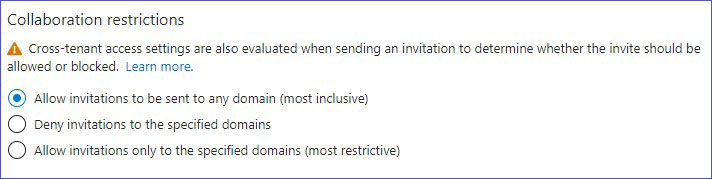
External User Manager provides detailed controls for managing access between different tenants, ensuring the security and efficiency of cross-tenant collaborations. Administrators can set specific policies for external access and also create blacklists and whitelists for entire external domains.
How can you connect different tenants with cross-tenant synchronization?
Cross-tenant synchronization is a capability within Microsoft Entra ID designed to streamline the management of user identities across different tenants within your organization. This feature focuses on easing the collaboration process by ensuring that user identities are consistent and up-to-date across various tenants.
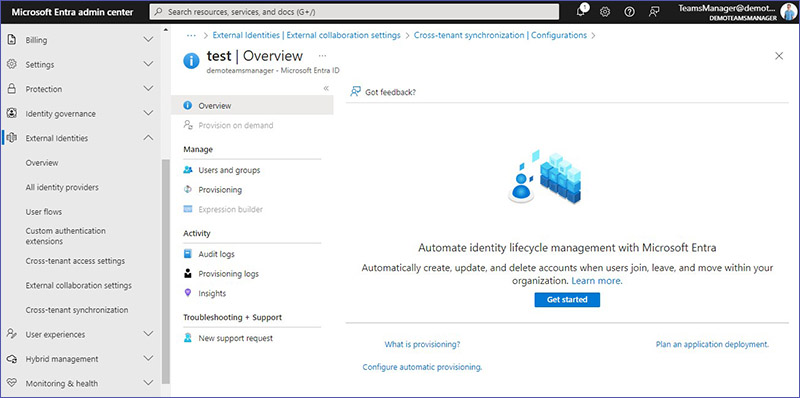
Automated Provisioning
Set up automatic processes for creating and managing user identities across your organizational tenants. This simplifies the onboarding process for new users and ensures everyone has access to the necessary resources without manual intervention.
Seamless Collaboration
By maintaining synchronized identities, users can more easily collaborate across different parts of your organization, even if those parts are managed as separate tenants.
Account Lifecycle Management
Automate the process of deactivating accounts when they’re no longer needed and keep user accounts synchronized to reflect any changes in their status or roles within the organization.
Cross-tenant synchronization supports scenarios such as:
B2B User Management
Automatically create user accounts across tenants for B2B scenarios, or enrich B2B user profiles with data from their primary (home) tenant.
Application Sharing
Facilitate the sharing of applications across tenants, utilizing the identity and access management (IAM) capabilities of Microsoft Entra ID to control access securely.
- Microsoft Learn provides an overview of Cross Tenant Synchronization here
Initiate the process by creating a new configuration. This involves setting up rules and processes for automatically managing the identity lifecycle within Microsoft Entra, including the creation, updating, and deletion of user accounts as people join, move within, or leave your organization.
- For more details, take a look at the full documentation for application and HR provisioning
When do you need more than Microsoft Entra External ID for guest management?
Microsoft Entra External Identities gives you the building blocks for secure external collaboration. In many environments, especially in smaller organizations, these features may be enough if:
- You have only a limited number of external users
- Guest invitations are handled by a small central IT team
- Compliance requirements are basic and easy to document
However, many Microsoft 365 tenants quickly reach a point where native features alone are no longer sufficient for efficient guest management in Microsoft 365 and Microsoft Teams:
- Hundreds or thousands of guests across many teams, sites, and groups
- Different business units inviting external users on their own
- Need for standardized approval workflows for guest access
- Strict audit and compliance requirements (e.g. access reviews, ISO 27001, internal policies)
- Requirement to document who invited which guest and why access was granted
In these cases, a dedicated solution like External User Manager helps you turn Entra External Identities into a controlled, automated guest management process with clear responsibilities and transparent reporting.
Complicated admin centers – or one comprehensive app
External User Manager offers a comprehensive solution for guest management in Microsoft 365 that goes beyond the native features of Microsoft Entra and the other admin centers. External User Manager provides an intuitive interface for the automation of invitations and access reviews and significantly reduces the administrative effort required to manage external identities.
Its capabilities for detailed access control and security compliance ensure that organizations can maintain high security standards while still staying open to collaboration. Book a free demo to find out more!
Microsoft Entra External Identities vs. External User Manager at a glance
| Scenario / Need | Microsoft Entra External ID | External User Manager |
| Basic guest access and B2B collaboration | ✔ Native support | ✔ Uses and extends Entra configuration |
| Central overview of all guests across Teams and sites | Limited, needs multiple admin centers | ✔ Dedicated dashboards and reports for guest users |
| Standardized guest invitation with approvals | Possible with custom configuration and tools | ✔ Built-in invitation and approval workflows |
| Automated lifecycle and access reviews for guest users | Possible via Identity Governance, complex setup | ✔ Predefined lifecycle rules and automated access reviews |
| Compliance-ready documentation of guest access decisions | Manual or via custom solutions | ✔ Integrated history and documentation of guest access and changes |
If you are currently relying only on Entra External Identities and feel the pain of manual work, missing overview, or audit findings around guest access, combining Microsoft Entra External ID with External User Manager can be a direct next step.
FAQ: External Identities in Microsoft Entra
What is Microsoft Entra External ID?
Microsoft Entra External ID is a set of features in Microsoft Entra that allows organizations to securely manage external users such as partners, suppliers, and customers. It covers identity providers, user flows, cross-tenant access, external collaboration settings, and external identities governance.
Who should care about External Identities in Microsoft 365?
IT admins, security teams, and IT decision makers who are responsible for Microsoft 365 guest access, B2B collaboration, and identity and access management should care about External Identities. This is especially relevant in environments with many external users or strict compliance requirements.
When are native Entra External Identities enough?
Native capabilities can be enough when the number of guests is small, processes are simple, and compliance needs are limited. You can often manage with the Microsoft Entra Admin Center and basic governance settings.
When does it make sense to add External User Manager?
If you need a central overview of all external identities, standardized guest access processes, automated lifecycle and access reviews, and clear documentation for audits, a dedicated solution like External User Manager is usually the better option. It turns the technical capabilities of Microsoft Entra External Identities into consistent, repeatable processes across the entire tenant.
How can I get started?
Start by reviewing your current guest users and external identities in Microsoft Entra and Microsoft 365. Check who invited them, which resources they can access, and whether the access is still needed. From there, you can define governance rules and configure External Identities in Entra. If you want to automate and standardize guest management, evaluate External User Manager with a free demo.
Interested in easily managing External Identities?


Chief Commercial Officer and Governance Specialist at Solutions2Share
Florian Pflanz has more than 8 years of experience with Microsoft 365 and has supported over 250 workshops on Teams governance.
His focus lies on lifecycle management, provisioning, and compliance requirements in regulated industries.
He shares best practices with IT admins and decision-makers to reduce complexity and strengthen secure collaboration in Teams.