A Guide to Pre-Built & Custom Microsoft Teams Templates
Why use Microsoft Teams templates?
Without a clear structure, collaboration in teams often results in too many teams with different organizations, a lack of rules, and areas that are difficult to maintain. Microsoft Teams templates help solve this problem: They enable the standardization of team structures, reduce manual setup, and ensure consistent processes.
Microsoft Teams templates are preconfigured templates that can be used to create teams based on recurring patterns – with defined channels, tabs, and settings. The result is a uniform and efficient structure that is tailored to the needs of each individual team or project.
➔ Read this case study to find out how Midwest BankCentre used teams templates to streamline teams creation.

How do templates help avoid chaos when creating teams?
Companies often face the same problems when creating new teams:
- Each team is structured differently
- Lack of standard channels and apps
- Unclear naming conventions
- Different permission structures
- No lifecycle management for old teams
Templates address precisely these pain points: they ensure consistent structures, uniform access rules, and accelerated provisioning of new teams.
What are Microsoft Teams Templates exactly?
Microsoft Teams templates are predefined blueprints for team creation. They can contain:
- Standard channels (e.g., General, Planning, Resources)
- Tabs with apps (Planner, OneNote, Files)
- Embedded tools such as Planner or SharePoint lists
- Requirements for owners and members
Templates can be created and managed in the Teams Admin Center. There, you can define new templates or customize existing ones.
How do I create a template in Microsoft Teams?
Temps nécessaire : 30 minutes
Here’s how you can create Microsoft Teams templates, providing a solid foundation for team creation:
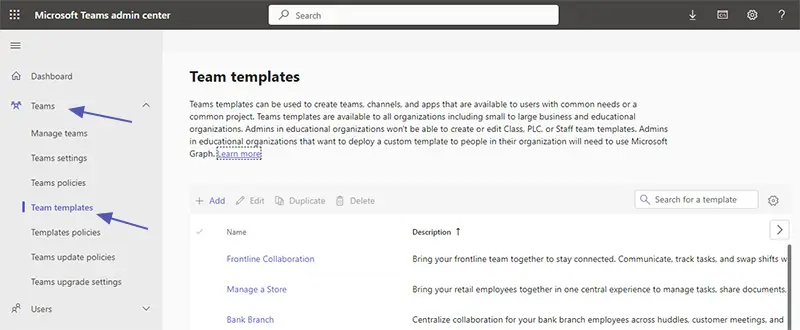
- Access Teams Admin Center
Navigate to the Microsoft Teams Admin Center, where you will find options to manage and create team templates located in the left-hand navigation under “Teams” and then “Team templates”.

- Choose a Starting Point
You can create a template from scratch or use an existing template as basis. If you need to create a new template for a specific business need, starting from scratch might be preferable.
- Define Your Template
· Team Name: Provide a relevant team name as well as a description
· Tabs and Apps: Customize the template by adding tabs and apps that reflect the objectives
· Channels: Include relevant channels, both general and private
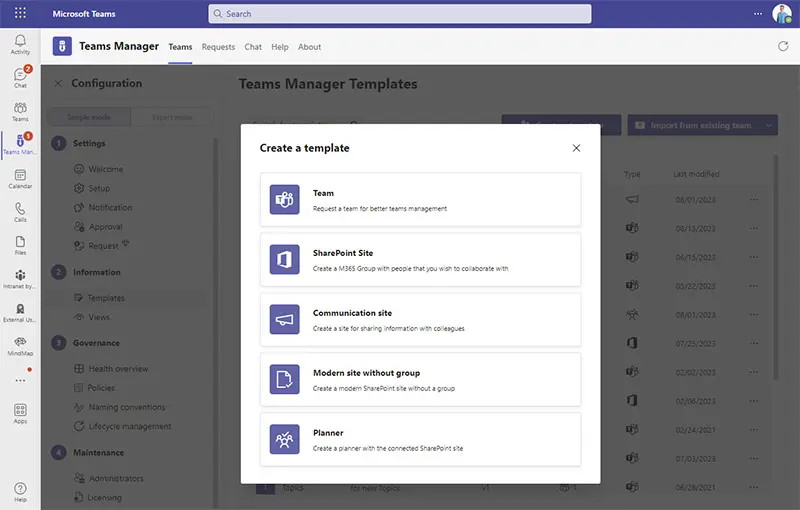
For creating more sophisticated custom team templates with folders, files, Planners complete with ready-made tasks, OneNote with pre-defined content, and predefined owners and members, download the app “Teams Manager” from the Teams store in order to build your template.
- Configure Project Management Elements
If you are creating a project management template, incorporate necessary tools and settings, such as assigning tasks or integrating with Microsoft Planner or OneNote.
- Save and Deploy
Once the template is configured, save the new template. Use this template with the predefined team structure to create new teams as needed.
Tips and Common Practices for Teams templates
When creating a template from an existing team, make sure that all content is necessary for the new purpose.
Regularly review templates in the Teams Admin Center at admin.teams.microsoft.com to ensure they remain in use and updated.
For more information on creating a team template in Microsoft Teams, check out the in-depth articles from Microsoft Learn on the topic, e.g.
- Create a custom team template in Microsoft Teams
- Create a new team template from an existing team template
What are the limitations of Microsoft Teams templates?
Microsoft Teams templates cover many standard scenarios. However, in their daily work, companies quickly encounter functional limitations that directly affect governance, maintainability, and security.
Limitations for custom templates
Microsoft Teams allows you to create custom templates. In practice, however, not all recurring requirements can be fully mapped.
Content such as predefined Planner tasks, OneNote structures, or files that should be present in every new team often has to be added manually. This increases the setup effort and leads to inconsistent team structures.
For standardized project rooms with recurring content, these limitations can be circumvented with advanced template functions, e.g., via Teams Manager.
No private channels in Microsoft Teams templates
Microsoft Teams templates from Microsoft do not support private channels. These must be created manually after the team has been created.
This leads to additional administrative effort, especially for projects with sensitive areas, and makes consistent access control more difficult. To include private channels in your templates, you can use a tool such as Teams Manager.
Restrictions on tabs
If custom tabs are used in a template, inconsistencies may occur in their function within newly created teams.
This mainly affects tabs with external apps or special configurations. For project or process teams, this can mean that expected content is not available correctly and must be reworked manually.
Templates cannot be applied to existing teams
Microsoft Teams templates only work when creating new teams. There is no provision for subsequent application or updating of existing teams.
This makes it difficult to enforce new standards, such as governance requirements, channel structures, or apps. With advanced template functions, such adjustments can also be rolled out to existing teams.
Limited integration of third-party apps
Although apps and tabs can be integrated into templates, the integration of third-party tools is not always seamless.
This limits the complete automation of complex team setups, especially for project- or process-specific applications.
Changes to templates are not automatically applied retroactively
If a Microsoft Teams template is changed, these adjustments are not automatically transferred to teams that have already been created.
This can lead to inconsistencies across the entire tenant, especially when there are many teams. Solutions such as Teams Manager allow changes to be maintained centrally and applied to all teams based on a template.
Limited control of permissions and roles
Teams templates primarily define structures, but offer only limited options for fine-tuning permissions and user roles.
Detailed access concepts often have to be implemented manually after creation, which causes governance risks and additional effort.
Create a team from a pre-built template
Creating a new team from a template within Microsoft 365 ensures standardized structures. Here’s a step-by-step guide to easily create teams using a template:
1. Access Microsoft Teams: Open Microsoft Teams within your Microsoft 365 account.
2. Select ‘Teams’: In the left-hand sidebar, click on ‘Teams.’
3. Click ‘Create a Team’: Select the ‘Join or create a Team’ option, usually located at the bottom left.
4. Select from a template: You will be presented with various templates. Select the team template that fits your needs. You may choose a template for a new team or use one customized to your organization.
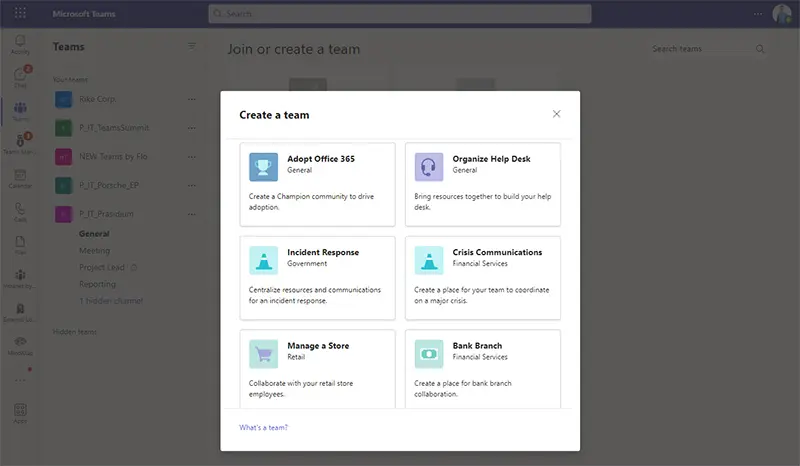
5. Provide Team Details: Input the necessary information for your new team, such as team name, description, and privacy settings.
6. Customize Channels and Apps: Configure channels and apps as per the template or modify them according to specific requirements.
7. Add Members: Invite members to join the new team, and assign roles if needed.
8. Review and Create: Confirm the settings and click ‘Create’ to complete the team creation process.
Key use cases for Microsoft Teams templates
Use case: Templates for construction projects
Pain point:
Large construction projects with multiple locations, internal teams, and external subcontractors often result in information silos, unclear communication channels, and scattered file storage.
Solution with Microsoft Teams templates:
- Standard channels for planning, budget, safety, and stakeholders
- Central file storage with predefined folder structures
- Uniform team structure for each construction project
- Controlled access for external users
Added value:
Project teams get started faster, work consistently across locations, and maintain an overview of communication and documents.
Use case: Project management templates
Pain:
Project teams often start without a clear structure, resulting in scattered and confusing tasks, files, and coordination.
Solution with Microsoft Teams templates:
- Channels for project planning, tasks, progress, and meetings
- Integration of Microsoft Planner for task management
- OneNote for project documentation
- Uniform folder structure for project files
Added value:
Project work in Microsoft Teams becomes standardized, more transparent, and easier to scale.
Use case: Onboarding and offboarding templates
Pain:
Without standards, onboarding and offboarding processes are time-consuming, error-prone, and dependent on individual people.
Solution with Microsoft Teams templates:
- Onboarding channels for introduction, training, and guidelines
- Offboarding channels for task handover and access revocation
- Integration of checklists and resources
- Uniform structure for each process
Added value:
Repeatable, traceable processes with clear responsibilities and less manual effort.
Use case: Department templates
Pain:
Departments often organize their teams differently, which makes collaboration difficult and reduces visibility for IT.
Solution with Microsoft Teams templates:
- Uniform basic structure for each department
- Standard channels for communication, documents, and meetings
- Option for individual customization per team
- Clear naming and structure standards
Added value:
Consistent departmental workspaces with flexibility for individual requirements.
Use case: Event templates
Pain point:
Event teams have to coordinate many tasks simultaneously, often under time pressure and with changing participants.
Solution with Microsoft Teams templates:
- Channels for planning, vendor coordination, and participant management
- Structure for schedules, meetings, and documents
- Central communication for all participants
Added value:
Quick setup of event teams with a clear structure and less coordination effort.
Use case: Launch templates for websites, apps, and products
Pain:
Launch projects require close coordination between marketing, development, and management, often with unclear processes.
Solution with Microsoft Teams templates:
- Channels for marketing, development, testing, and feedback
- Integration of task and project management apps
- Dedicated channel for go-live coordination
Added value:
Structured collaboration during all launch phases with clear task distribution.
Use case: Templates for universities and educational institutions
Pain:
Different requirements from teaching, administration, and student organizations lead to uncontrolled growth in Microsoft Teams.
Solution with Microsoft Teams templates:
- Academic templates for courses, seminars, and research
- Administrative templates for HR, finance, and organization
- Templates for student clubs and initiatives
- Uniform channel and folder structures for each type
Added value:
Standardized but flexible Teams environments for large numbers of users with clear governance.
Microsoft Teams templates cover many use cases where standardization, rapid deployment, and uniform structures are the focus. The more complex governance, authorization, or lifecycle requirements become, the more important advanced template and automation features are.
FAQ about Templates for Microsoft Teams
What are Microsoft Teams templates?
Microsoft Teams templates are predefined templates that can be used to create new teams based on a standardized structure. They contain channels, tabs, apps, and basic settings and help to deploy teams more quickly and consistently.
How do I create Microsoft Teams templates?
To create Microsoft Teams templates, go to the “Teams” section in the Microsoft Teams Admin Center and select “Team templates”. From there, you can click on “Add” and follow the process to define channels, apps, and other settings. This allows you to create the right collaboration space for your team structure with a set designed around a business need. Organizations can create custom templates from scratch or modify existing ones.
Can I customize teams templates in the Teams Admin Center?
Yes, you can customize Microsoft Teams templates in the Teams Admin Center. In order to do so, you need admin rights. You can create new templates or modify existing ones, or even templatize an existing team by defining channels, apps, settings, and more, tailoring them to unique business processes within your organization. Taking advantage of Microsoft’s customizable templates ensures standardized teams and a faster creation process for your users.
What is the difference between Microsoft Teams templates and Teams Manager templates?
Microsoft Teams templates define a starting structure for new teams. Teams Manager templates extend this approach with governance rules, lifecycle automation, private channels, task and folder structures, and the ability to apply templates to existing teams.
You can find a detailed comparison here:
Microsoft Teams templates vs. Teams Manager templates
What are the limitations of native Microsoft Teams templates?
Native Teams templates provide a good basis, but they have functional limitations. These include a lack of private channels, limited options for complex folder and task structures, no retroactive updating of existing teams, and limited governance and lifecycle functions.
Can I retroactively adapt existing teams to a template?
This is not possible with native Microsoft Teams templates. Changes to templates only affect newly created teams. Advanced template solutions, on the other hand, make it possible to retroactively adapt existing teams to standards.
Are Microsoft Teams templates also suitable for governance and compliance?
Teams templates support basic standardization, but they do not replace comprehensive governance. Additional governance features are required for requirements such as naming rules, permission control, lifecycle rules, or audit traceability.
Take advantage of the pre-built templates for Microsoft Teams
Microsoft Teams templates are a powerful tool for standardization and accelerated teams provisioning. They provide a solid foundation for simple scenarios. However, they have their limitations in more complex environments with governance requirements, private channels, or lifecycle rules.
Tools such as Teams Manager fill these gaps by extending the functionality of templates and automating recurring processes.

Create complex templates with Teams Manager
While Microsoft’s templates cover the basics, there are many use cases that cannot be realized with the available options:
- Standardized task management, where you want to include a Planner with pre-defined tasks in your templates
- Adding folders for a uniform folder structure
- Including documents in the template, e.g. information for users on how to use the team
- Specifying owners and members in a template
- Allowing or disabling guest access
- and many more!
For these scenarios, the Teams app Teams Manager offers a solution!
Download the app directly from the Teams store for a free trial, or let us show you how we can solve your challenges in a quick demo.


CEO and Governance Expert at Solutions2Share
Christian Groß is a Microsoft Teams governance expert from the very beginning. Over the past 6 years, he has developed 6 Teams apps, founded Solutions2Share, and launched the German-speaking Microsoft 365 conference in Mainz, Germany.
He regularly speaks at international M365 events and supports IT leaders in building scalable governance strategies.