Channels are at the heart of Microsoft Teams – this is where collaboration actually happens. But many organizations face the same challenges: channels grow without control, old conversations remain forever, private or shared channels are misused, and structure is lost.
In this article, you’ll learn:
- What channel types exist and when to use them
- How to create new channels – manually and automatically
- When to hide, delete, or archive channels
- Best practices for keeping your channels organized
- How Teams Manager automates channel management
What types of channels exist in Microsoft Teams – and when should you use them?
Microsoft Teams offers three different channel types, each with its own purpose:
- Standard channels (public): Visible and accessible for all team members. Best for general discussions and collaboration.
- Private channels: Restricted to selected members within a team. Ideal for sensitive topics or confidential projects.
- Shared channels (Teams Connect): Enable collaboration across teams or even organizations – without tenant switching.
👉 Tip: With Teams Manager, you can define templates for each channel type. This ensures users choose the right type from the start, while governance rules are enforced automatically.
How do you create new Teams channels?
Manually in Microsoft Teams
Time needed: 1 minute
Here’s the standard way to create a new channel step by step:
- Open MS Teams
Open the team where you want to create the channel. - Add a Teams Channel
Click on the “…” next to the team name and select “Add channel”.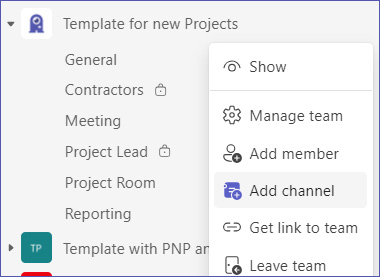
- Enter Channel Details
Enter a name and an optional description. - Select a Channel Type
Choose the channel type: Standard, Private, or Shared.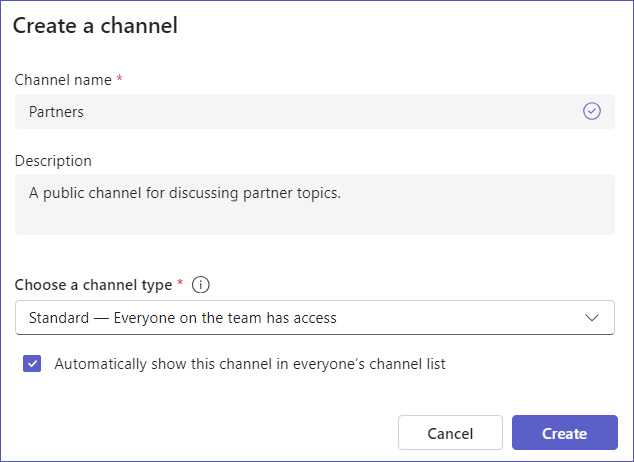
- Create the New Channel
Click “Add” – the channel will appear in the list. - Finished
You now know how to create a Teams channel.
Automated with Teams Manager
Manual creation often leads to inconsistencies. With Teams Manager, the process becomes structured and policy-compliant:
- A user submits a channel request.
- An approval workflow checks naming conventions and governance policies.
- The channel is automatically created with predefined structure, tabs, and permissions.
- Lifecycle rules immediately start monitoring for inactivity.
👉 Avoid sprawl and save time – see automation in action in a free demo.
When should you hide channels?
Not every channel needs to remain visible at all times. Some are only relevant occasionally.
- Hide: The channel stays active, but disappears from your list and notifications.
- Unhide: You can make it visible again anytime.
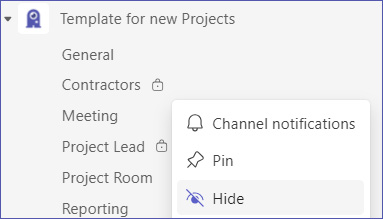
👉 Practical tip: Hide channels instead of deleting them when content is still valuable but rarely used. With Teams Manager, you can set policies to automatically hide or archive channels after a defined time.
How do you delete channels safely?
Deleting a channel should always be a deliberate decision – once deleted, all content is lost.
- Who can delete channels? Typically team owners, not regular members.
- How? Go to “Manage channel → Delete this channel”.
- When is it useful? Only when content is no longer needed at all.
👉 Alternative: Archive instead of delete – this keeps data accessible but read-only. With Teams Manager, you can automate archiving and deletion rules across your organization.
What are the best practices for managing Teams channels?
Messy channel structures are one of the main reasons Teams environments become unmanageable. Follow these practices to stay in control:
- Review regularly: Identify and remove unused or outdated channels.
- Use consistent naming conventions: Ensure clarity and avoid confusion.
- Manage notifications wisely: Not every channel needs constant @mentions.
- Define lifecycles: Set rules for when channels should be archived or deleted.
👉 With Teams Manager, you can turn these best practices into automated rules – without extra admin work.
How does Teams Manager automate your channel management?
Manual channel management is time-consuming and error-prone. Teams Manager automates the entire process:
- Channel templates: Predefined structures including tabs, apps, and permissions.
- Automatic naming & metadata enforcement: Prevent duplicate or incorrect channel names.
- Automated creation, archiving & deletion: Lifecycle rules run in the background.
- Dashboards & reporting: Always know which channels exist and who owns them.
👉 Reduce manual workload and enforce governance – book your free demo.