
When the last owner leaves, nobody in the Microsoft Teams workspace can add members, remove leavers, or approve guests. This read-only PowerShell check counts the groups already in that state.
Picture a team someone, Mark, created in Microsoft Teams two years ago for a product launch. Mark ran it properly: a channel per workstream, the agency invited as guests, files where people could find them. Last spring Mark left. IT did exactly what the offboarding checklist says: block the sign-in, remove the license, delete the account. It sat in Deleted users for 30 days, then aged out for good. Nothing about the team changed. The channels open, the Files tab still serves the SharePoint library behind it, and the agency guest still signs in. What left with that account was the team's only owner. The only visible trace is in the Teams admin center, where the team's Owners count now reads 0.
What "a workspace nobody owns" actually means
Every team in Microsoft Teams sits on a Microsoft 365 group. So does every group-connected SharePoint site, every group mailbox in Outlook, and every Planner plan attached to them. Group owners are its administrators. They add and remove members, approve the guest invitations members send from Outlook on the web, rename the team, switch it between Public and Private, and delete the whole thing.
Empty the owner list and every one of those actions needs a Groups Administrator, an Exchange Administrator, or a User Administrator working in the Microsoft 365 admin center. A member's guest invitation has nobody to approve it. The contractor whose engagement ended last quarter cannot be removed by anyone who works alongside them.
The sharpest version shows up if your tenant runs a group expiration policy, which needs Entra ID P1 or P2. Renewal notices normally go to the owners at 30 days, 15 days, and 1 day before a group expires. With no owner, they go instead to whichever single address someone typed into the expiration settings when the policy was created. A busy team rescues itself, because one channel visit auto-renews it. A quiet one depends entirely on whether anybody still reads that mailbox, and a day after the expiration date the group is deleted.
There's also a quieter route into this state than an owner leaving. When a script or provisioning tool creates a group using application permissions, there's no signed-in user for Microsoft to assign as the owner. Unless the code sets one explicitly, that group starts life with no human owner at all: the application that created it holds the owner seat instead.
Microsoft built a feature for exactly this. The ownerless group policy emails the most active members and asks one of them to take ownership. It stays off until an admin turns it on.
How teams lose their owners without anyone failing
None of these routes involves a mistake. Process improvements don't close the gap, because the process is what produces it.
- The single-owner default. Whoever clicks Create a team in Microsoft Teams becomes its only owner, and Microsoft 365 never insists on a second. Microsoft's own guidance asks for at least two. For a five-person project team a co-owner feels like ceremony, so the team launches with one and stays that way. That decision has no expiry date, and it comes due the day that person resigns.
- Offboarding that works. Graph refuses to remove a group's last owner, so Microsoft plainly treats this state as one worth preventing. Deleting the account is not removing an owner, though, so the guard never fires and ownership leaves with the person. The cleaner your leaver process runs, the more reliably it manufactures ownerless workspaces.
- Provisioning that scales. Teams get created by a script, a request form, or a lifecycle tool holding application permissions rather than by hand. With no signed-in user, Microsoft has nobody to appoint as owner. The API reference is blunt about the result: creating a group app-only without specifying owners "creates the group anonymously and the group isn't modifiable." On a dev tenant we watched such a group come back owned by the application that created it. Automation was the mature choice, and it removed the one accident that used to guarantee an owner: a person clicking Create.
How to check how many ownerless workspaces live in your tenant?
Permissions and modules needed to run the script
One read-only permission set: GroupMember.Read.All, which covers the groups, their owners and their members.
One module from the Microsoft Graph PowerShell SDK: Microsoft.Graph.Authentication. Every call goes through Invoke-MgGraphRequest rather than the per-workload cmdlets, so there's nothing else to install. The scope needs admin consent the first time someone in your tenant uses it.
If you've consented a different set of scopes to the Microsoft Graph PowerShell application before, run Disconnect-MgGraph and start again. A cached token gets reused and will not carry a newly added scope, which produces the confusing result of a script that runs and finds nothing.
The script that lists your ownerless groups
#Requires -Version 7.0
#Requires -Modules Microsoft.Graph.Authentication
<#
.SYNOPSIS
    Lists the Microsoft 365 groups (including Teams) that have no owner, with the member
    count of each one so you can see the blast radius.

.DESCRIPTION
    LCO-0005 in the Governance Autopilot catalog.

    Read-only. Every call is a GET, with one exception: member counts go through the
    /$batch endpoint, which is reached by POST but carries nothing except GET requests.
    No New-, Set-, Update- or Remove- cmdlet appears anywhere in this file.

    Only Microsoft.Graph.Authentication is needed, because every call goes through
    Invoke-MgGraphRequest rather than the per-workload cmdlets.

    What it does:
      1. Signs in and reports which account and tenant answered
      2. Counts the Microsoft 365 groups in the tenant (one call, the $count annotation only)
      3. Pages through the ownerless groups, reporting progress per page
      4. Counts members with JSON batching, 20 requests per round trip, honouring
         Retry-After on 429 and 503
      5. Writes every row to CSV and prints only the largest on screen

    Scale note: on a tenant with thousands of groups, counting members one call at a time
    takes about an hour. Batching brings it down to minutes, which is why this script is
    longer than a first pass would be.

.PARAMETER TenantId
    Optional. Pass it when your account can reach more than one tenant.

.PARAMETER OutputCsv
    Destination CSV. Defaults to ownerless-m365-groups_<timestamp>.csv in the current directory.

.PARAMETER BatchSize
    Requests per batch call. Microsoft Graph allows a maximum of 20.

.PARAMETER TopConsole
    How many rows, largest member count first, to print on screen. The CSV holds all of them.

.PARAMETER MaxRetries
    Retries per group on throttling or server errors. After that the group is reported with
    its error text in the Error column rather than silently dropped.

.EXAMPLE
    .\check.ps1 -Verbose

.NOTES
    If you have consented a different set of scopes to the Microsoft Graph PowerShell
    application before, you may need to run Disconnect-MgGraph and start again: a cached
    token gets reused and will not carry a newly added scope.
#>

# Read-only. Scopes: GroupMember.Read.All

[CmdletBinding()]
param(
    [string]$TenantId,
    [string]$OutputCsv = (Join-Path (Get-Location).Path ('ownerless-m365-groups_{0:yyyyMMdd-HHmm}.csv' -f (Get-Date))),
    [ValidateRange(1, 20)]
    [int]$BatchSize    = 20,
    [int]$TopConsole   = 25,
    [ValidateRange(0, 20)]
    [int]$MaxRetries   = 5
)

$ErrorActionPreference = 'Stop'
$GraphBase = 'https://graph.microsoft.com/v1.0'
$Eventual  = @{ ConsistencyLevel = 'eventual' }   # required by the advanced queries below

# --------------------------------------------------------------------- connect

$connect = @{ Scopes = 'GroupMember.Read.All'; NoWelcome = $true }
if ($TenantId) { $connect['TenantId'] = $TenantId }
Connect-MgGraph @connect

$ctx = Get-MgContext
if (-not $ctx) { throw 'No Graph connection: Connect-MgGraph failed.' }

# Say out loud which tenant answered. Everything here is read-only, but running a
# governance check against the wrong tenant still wastes an afternoon.
if ($ctx.AuthType -eq 'AppOnly') {
    Write-Host ("Connected as app '{0}' in tenant {1}" -f $ctx.AppName, $ctx.TenantId) -ForegroundColor Green
}
else {
    Write-Host ("Connected as {0} in tenant {1}" -f $ctx.Account, $ctx.TenantId) -ForegroundColor Green
}
Write-Verbose ("AuthType: {0} | Scopes: {1}" -f $ctx.AuthType, ($ctx.Scopes -join ', '))

# -------------------------------------------------- total Microsoft 365 groups
# $top=1 keeps this cheap: the number comes from the $count annotation, not from
# paging every group in the tenant.

$totalFilter = "groupTypes/any(c:c eq 'Unified')"
$totalUri    = '{0}/groups?$count=true&$top=1&$select=id&$filter={1}' -f $GraphBase, [uri]::EscapeDataString($totalFilter)
$totalCount  = [int](Invoke-MgGraphRequest -Method GET -Uri $totalUri -Headers $Eventual).'@odata.count'
Write-Host ("Microsoft 365 groups in the tenant: {0}" -f $totalCount) -ForegroundColor Cyan

# -------------------------------------------------------- the ownerless groups
# Paged by hand rather than with -All, so progress stays visible. On a large tenant a
# silent pager looks like a hung script and gets killed.

$flaggedFilter = "groupTypes/any(c:c eq 'Unified') and owners/`$count eq 0"
$uri = '{0}/groups?$count=true&$top=999&$select=id,displayName,visibility,createdDateTime,resourceProvisioningOptions&$filter={1}' -f
       $GraphBase, [uri]::EscapeDataString($flaggedFilter)

$flagged      = [System.Collections.Generic.List[object]]::new()
$flaggedCount = $null
$page         = 0
$swLoad       = [System.Diagnostics.Stopwatch]::StartNew()

while ($uri) {
    $page++
    $resp = Invoke-MgGraphRequest -Method GET -Uri $uri -Headers $Eventual

    if ($null -eq $flaggedCount -and $null -ne $resp.'@odata.count') {
        $flaggedCount = [int]$resp.'@odata.count'
        Write-Host ("Groups with no owner: {0}" -f $flaggedCount) -ForegroundColor Yellow
    }

    # Invoke-MgGraphRequest hands back hashtables with camelCase keys. Normalise once
    # here so nothing downstream depends on how the data arrived.
    foreach ($g in $resp.value) {
        $flagged.Add([PSCustomObject]@{
            Id                          = [string]$g.id
            DisplayName                 = [string]$g.displayName
            Visibility                  = [string]$g.visibility
            CreatedDateTime             = ($g.createdDateTime -as [datetime])
            ResourceProvisioningOptions = @($g.resourceProvisioningOptions)
        })
    }

    if ($flaggedCount -gt 0) {
        Write-Progress -Id 1 -Activity 'Loading groups with no owner' `
            -Status ("Page {0}, loaded {1} of {2}" -f $page, $flagged.Count, $flaggedCount) `
            -PercentComplete ([Math]::Min($flagged.Count / $flaggedCount * 100, 100))
    }

    $uri = $resp.'@odata.nextLink'
}
Write-Progress -Id 1 -Activity 'Loading groups with no owner' -Completed
Write-Host ("Loaded {0} group(s) in {1:hh\:mm\:ss} across {2} page(s)" -f $flagged.Count, $swLoad.Elapsed, $page) -ForegroundColor Cyan

# --------------------------------------------------------------- sanity checks
# Cheap, and they catch the two ways this check can lie to you.

if ($null -ne $flaggedCount -and $flagged.Count -ne $flaggedCount) {
    Write-Warning ("The count annotation says {0} but {1} were loaded. Check the filter and the paging before trusting this." -f $flaggedCount, $flagged.Count)
}
if ($totalCount -gt 0 -and $flagged.Count -eq $totalCount) {
    Write-Warning 'Every Microsoft 365 group came back ownerless. That almost certainly means the owners part of the filter did not apply, not that your tenant is in ruins. Check against a group you know has an owner before you act on this.'
}
if ($flagged.Count -eq 0) {
    Write-Host ("0 of {0} Microsoft 365 groups have no owner." -f $totalCount) -ForegroundColor Green
    return
}

# ---------------------------------------------------------------member counts
# One call per group is the obvious approach and far too slow: roughly an hour for
# 10,000 groups. Graph allows 20 requests per JSON batch, which turns that into
# minutes. Microsoft's throttling guidance is explicit that a batch returns 200 while
# individual requests inside it can still fail with 429, and that those are not retried
# for you. So each failed request goes back on the queue and the longest Retry-After
# in the batch is honoured before the next round trip.

$queue    = [System.Collections.Generic.Queue[object]]::new()
foreach ($g in $flagged) { $queue.Enqueue($g) }

$counts   = @{}
$errors   = @{}
$attempts = @{}
$total    = $flagged.Count
$done     = 0
$batchNo  = 0
$sw       = [System.Diagnostics.Stopwatch]::StartNew()
$lastDraw = [System.Diagnostics.Stopwatch]::StartNew()

function Register-Retry {
    param([Parameter(Mandatory)]$Group, [string]$Reason)

    $id = $Group.Id
    $script:attempts[$id] = 1 + [int]$script:attempts[$id]

    if ($script:attempts[$id] -gt $MaxRetries) {
        $script:errors[$id] = "Gave up after $MaxRetries attempt(s): $Reason"
        $script:done++
    }
    else {
        $script:queue.Enqueue($Group)
        Write-Verbose ("Retry {0}/{1} for {2}: {3}" -f $script:attempts[$id], $MaxRetries, $Group.DisplayName, $Reason)
    }
}

while ($queue.Count -gt 0) {
    $chunk = @(for ($k = 0; $k -lt $BatchSize -and $queue.Count -gt 0; $k++) { $queue.Dequeue() })
    $batchNo++

    # /members?$count=true&$top=1 rather than /members/$count: the response is JSON,
    # which reads back reliably inside a batch.
    $requests = @(
        for ($k = 0; $k -lt $chunk.Count; $k++) {
            @{
                id      = "$k"
                method  = 'GET'
                url     = "/groups/$($chunk[$k].Id)/members?`$count=true&`$top=1&`$select=id"
                headers = @{ ConsistencyLevel = 'eventual' }
            }
        }
    )

    try {
        # Single quotes on purpose: $batch is part of the URL, not a variable.
        $resp = Invoke-MgGraphRequest -Method POST -ContentType 'application/json' `
            -Uri 'https://graph.microsoft.com/v1.0/$batch' `
            -Body (@{ requests = $requests } | ConvertTo-Json -Depth 5)
    }
    catch {
        foreach ($g in $chunk) { Register-Retry -Group $g -Reason "Batch failed: $($_.Exception.Message)" }
        Write-Warning "Batch $batchNo failed: $($_.Exception.Message). Retrying in 10s."
        Start-Sleep -Seconds 10
        continue
    }

    # Responses do not come back in request order, so match them up by id.
    $waitSeconds = 0
    foreach ($r in $resp.responses) {
        $g      = $chunk[[int]$r.id]
        $status = [int]$r.status

        if ($status -eq 200) {
            $c = $r.body.'@odata.count'
            if ($null -ne $c) { $counts[$g.Id] = [int]$c; $done++ }
            else { Register-Retry -Group $g -Reason 'Response carried no @odata.count' }
        }
        elseif ($status -in 429, 500, 503, 504) {
            Register-Retry -Group $g -Reason "HTTP $status"
            $ra = $r.headers.'Retry-After'
            $waitSeconds = [Math]::Max($waitSeconds, $(if ($ra) { [int]$ra } else { 2 }))
        }
        else {
            $msg = if ($r.body.error.message) { $r.body.error.message } else { 'unknown error' }
            $errors[$g.Id] = "$status $msg"
            $done++
        }
    }

    if ($waitSeconds -gt 0) {
        Write-Verbose "Throttled, waiting $waitSeconds s"
        Start-Sleep -Seconds $waitSeconds
    }

    # Redraw twice a second at most; the progress bar itself costs time otherwise.
    if ($queue.Count -eq 0 -or $lastDraw.ElapsedMilliseconds -ge 500) {
        $perItem = $sw.Elapsed.TotalSeconds / [Math]::Max($done, 1)
        Write-Progress -Id 2 -Activity 'Counting members' `
            -Status ("{0} of {1}, batch {2}, pending {3}, error(s) {4}" -f $done, $total, $batchNo, $queue.Count, $errors.Count) `
            -PercentComplete ([Math]::Min($done / $total * 100, 100)) `
            -SecondsRemaining ([int]($perItem * ($total - $done)))
        $lastDraw.Restart()
    }
}
Write-Progress -Id 2 -Activity 'Counting members' -Completed
Write-Host ("Counted {0} group(s) in {1:hh\:mm\:ss} across {2} batch(es), {3} error(s)" -f $total, $sw.Elapsed, $batchNo, $errors.Count) -ForegroundColor Cyan

# --------------------------------------------------------------------- output

$results = foreach ($g in $flagged) {
    [PSCustomObject]@{
        Workspace     = $g.DisplayName
        GroupId       = $g.Id
        TeamConnected = [bool]($g.ResourceProvisioningOptions -contains 'Team')
        Visibility    = $g.Visibility
        Members       = if ($counts.ContainsKey($g.Id)) { $counts[$g.Id] } else { $null }
        CreatedOn     = if ($g.CreatedDateTime) { '{0:yyyy-MM-dd}' -f $g.CreatedDateTime } else { $null }
        Error         = $errors[$g.Id]
    }
}

# Largest first. Groups whose count could not be determined sort last, not first.
$sorted = $results | Sort-Object -Property `
    @{ Expression = { if ($null -eq $_.Members) { -1 } else { $_.Members } }; Descending = $true },
    @{ Expression = 'Workspace'; Descending = $false }

$sorted | Export-Csv -Path $OutputCsv -NoTypeInformation -Encoding UTF8
Write-Host ("CSV written: {0}" -f $OutputCsv) -ForegroundColor Green

$sorted | Select-Object -First $TopConsole | Format-Table -AutoSize

$withTeam = @($results | Where-Object TeamConnected).Count
Write-Host ("{0} of {1} Microsoft 365 groups have no owner, {2} of them Teams-connected" -f
    $results.Count, $totalCount, $withTeam) -ForegroundColor Yellow

if ($errors.Count) {
    Write-Warning ("Member count could not be determined for {0} group(s). See the Error column in the CSV." -f $errors.Count)
}
That's longer than a detection script has any right to be, and every extra line is there because of tenant size.
The first version I wrote for this check ran to about thirty lines. It worked on my development tenant and fell over when Christoph Schrade, our Senior Cloud System Engineer, ran it against his large test tenant of around 10k workspaces. By the time I'd rewritten the parts that didn't survive Christoph's tenant, we'd gone from 30 lines to almost 300. On a personal note, I'm always amazed by the complexity hiding behind something as simple as checking for ownerless Microsoft 365 workspaces.
The detection itself is one server-side query. Graph filters on owners/$count eq 0, so the script never drags owner lists across the wire. The expensive half is the member counts, one call per finding, which on a tenant with thousands of groups takes about an hour. So the script batches them at 20 requests per round trip, which is Graph's maximum, turning that hour into minutes.
Batching brings its own trap, and Microsoft's throttling guidance names it: a batch returns HTTP 200 while individual requests inside it can still fail with 429, and those are not retried for you. A script that ignores this reports member counts that silently aren't there. This one keeps a queue, puts failed requests back on it, and waits out the longest Retry-After in the batch before the next round trip. Groups that still fail after five attempts are reported with their error rather than dropped.
Two smaller choices for the same reason. It pages the group list by hand instead of using -All, because a silent pager on a large tenant looks exactly like a hung script and gets killed. And it writes every row to CSV, printing only the 25 largest, because a console table of four hundred workspaces is not something anyone reads.
The numbers from that run: the flagged list came back in six seconds across eleven pages, and roughly ten thousand member counts took two minutes and twenty seconds across 513 batches. Graph never throttled once, so the retry queue above is insurance we haven't yet had to use.
What each column tells you, and what a zero doesn't prove
- Workspace / GroupId: which group, and the ID you'll need when you fix it.
- TeamConnected :
Truemeans an actual team in Microsoft Teams.Falseis a plain Microsoft 365 group or a group-connected SharePoint site without a team. (TeamConnectedisresourceProvisioningOptionscontainingTeamin the Graph response.) - Visibility:
PublicorPrivate. A private workspace with no owner is the worse finding: nobody can approve who gets in, and nobody can vouch for who already is. - Members: the blast radius. Output sorts by this, largest first. Forty people working in a room nobody manages outranks an empty shell from 2021.
- CreatedOn: how long this has plausibly been true. Old, empty, ownerless groups are cleanup candidates; young, busy ones need an owner today.
- Error: populated only when the member count couldn't be determined for that group, after five attempts. A row with an error is still a finding: the group has no owner, you just don't know how many people are in it yet.
- The last line,
X of Y Microsoft 365 groups have no owner, Z of them Teams-connected, is the number for your notes.
The console shows the 25 largest. Everything goes to the CSV, which is the artifact worth keeping: it's what you sort, filter, and hand to whoever owns the cleanup.
A zero result means no group has an empty owner list. It doesn't prove ownership is healthy. A workspace whose only owner is a disabled account passes this check; that's our Governance Autopilot policy LCO-0007. So does an owner entry pointing at a deleted account (LCO-0008). And so does a group whose only owner is a service principal rather than a person, which is the one to keep in mind if your tenant provisions workspaces from code. We tested it: a group created app-only lists the creating application as its owner, so owners/$count is 1 and this check stays quiet, even though no human can manage the workspace. Different gaps, different checks.
The opposite mistake is louder and worth knowing about. If every Microsoft 365 group in the tenant comes back ownerless, the filter almost certainly didn't apply, rather than your tenant having collapsed overnight. owners/$count is an advanced query: it needs the ConsistencyLevel: eventual header and $count=true in the request, and without them the result can come back unfiltered. That's why the script compares the flagged count against the tenant total and warns when they match. It's the one number you'd forward to your CISO before checking it, so it's the one worth guarding.
How to put owners back without making it worse
Before you change anything
Resist the shortcut of assigning an IT service account as owner of everything on the list. That takes the number to zero and makes the problem worse, because "nobody accountable" becomes "wrong account accountable" and next quarter you cannot tell the two apart.
- Run the check and keep the output. The
Memberscolumn is your priority order. - For each workspace, pick owner candidates from the people who actually use it. Microsoft's own ownerless-group policy nominates the most active members; do the same by hand. For a workspace with no active members at all, the real question is expiration, not ownership.
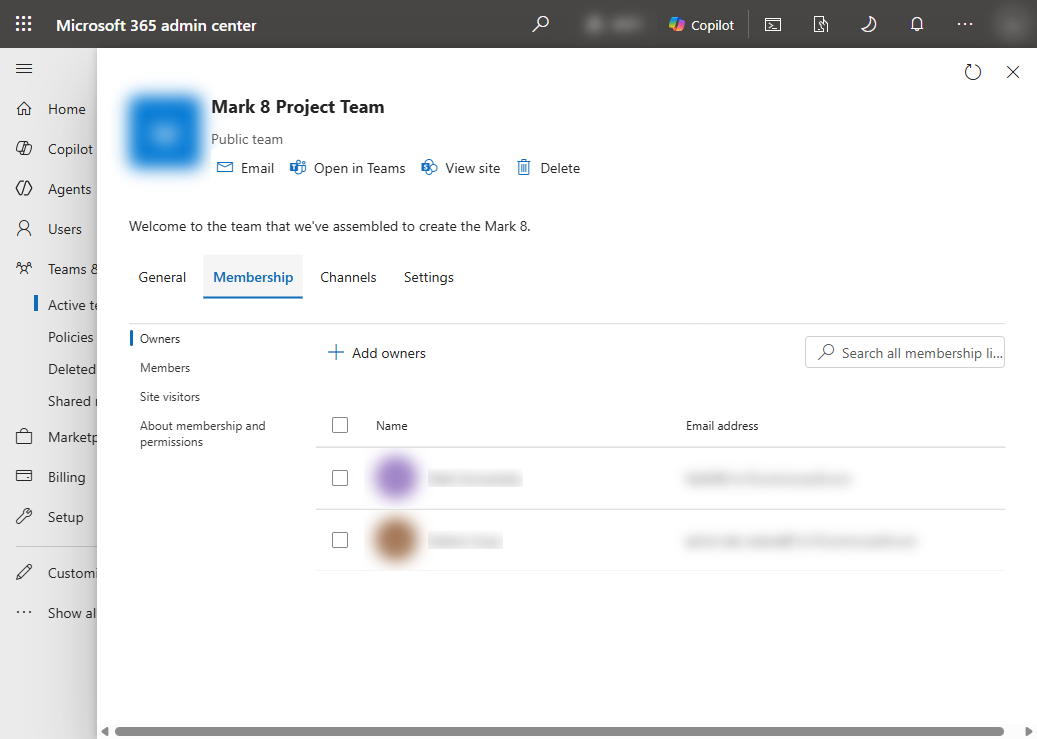
- Assign owners in the Microsoft 365 admin center (admin.microsoft.com). You need the Exchange Administrator, Groups Administrator, or User Administrator role, not Global Administrator:
- Go to Teams & groups > Active teams & groups and select the group name.
- On the Membership tab, select Owners, then + Add owners.
- Add two. One owner is how this list got populated in the first place.
- Then stop the list from refilling. Turn on the ownerless group policy. If you don't see Settings in the left navigation, click Show all at the bottom first, then Settings > Org settings > Services tab > Microsoft 365 Groups. Under Ownerless groups, check When there's no owner, email and ask active group members to become an owner, then Save.
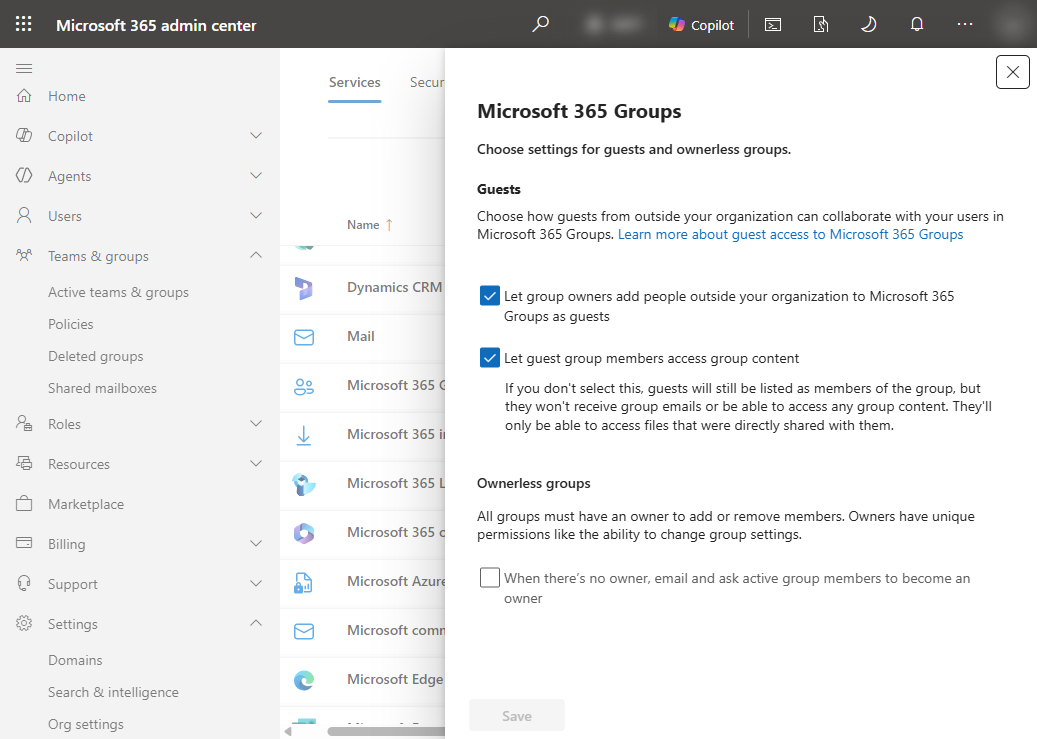
Know its edges before you rely on it. It notifies up to 90 active members weekly, for one to seven weeks, and at most two of them can accept. It needs an eligible subscription: Business Premium, E3 or E5, or an equivalent. Restricting who is eligible through a security group also needs Entra ID P1 or P2. When the notification window closes, unclaimed groups are your job again, and the policy will not revisit them.
What breaks when you assign new owners
The fix might look simple: one button in the Microsoft 365 admin center. However, it carries consquences:
- The new owner can delete the team the same afternoon. Ownership isn't a label, it's a permission grant: remove members, rename the team, switch it to Public, delete it, manage the shared mailbox. Hand a workspace to a caretaker who doesn't know its history and "ownerless" becomes "Oops, sorry I didn't know. I accidentally deleted..."
- The ownerless-group policy emails people who never asked. Switch it on and the most active members start receiving weekly ownership invitations. In a workspace with sensitive content or an awkward name, that email is the moment everyone learns nobody has been in charge. Decide who should hear that from you first.
- Cleanup deletes more than the team. Deleting an old, empty, ownerless group takes its SharePoint site, its group mailbox, and its Planner plans with it. They sit in the recycle bin for thirty days, then "Au revoir !". The Planner board some other team quietly built into their routine is the classic casualty.
All three are survivable if you see them coming, which is the argument for working the list deliberately instead of bulk-assigning owners on a Friday.
Manage ownerless workspaces with Governance Autopilot
LCO-0005, ownerless workspaces, is one of the 123 policies in the Governance Autopilot catalog, which spans identity and access, guest and external sharing, workspace lifecycle and ownership, naming, and storage. Three sibling checks in this series look at ownership from other angles: guests who own workspaces (LCO-0010), owners whose accounts are disabled (LCO-0007), and owner entries pointing at deleted accounts (LCO-0008).
The script above checks one policy, once. That's the honest limit of a blog post. Governance Autopilot reads your whole tenant against all 123 in a single pass and gives you a report you can hand to your Head of IT (what it found, what each finding means, and what to do about it).
We're onboarding beta customers in small cohorts. Joining one gets you the full assessment, free while the beta runs. Apply for the beta.
References
- https://learn.microsoft.com/microsoft-365/admin/create-groups/ownerless-groups-teams
- https://learn.microsoft.com/microsoftteams/manage-teams-in-modern-portal
- https://learn.microsoft.com/entra/identity/users/groups-lifecycle
- https://learn.microsoft.com/graph/json-batching
- https://learn.microsoft.com/graph/throttling
- https://learn.microsoft.com/microsoft-365/admin/create-groups/office-365-groups
- https://learn.microsoft.com/microsoft-365/admin/create-groups/add-or-remove-members-from-groups
- https://learn.microsoft.com/entra/fundamentals/concept-learn-about-groups
- https://learn.microsoft.com/entra/fundamentals/users-default-permissions
- https://learn.microsoft.com/graph/api/group-post-groups
- https://learn.microsoft.com/graph/api/resources/group