

What is Microsoft Teams provisioning and why is it important?
Teams provisioning is an important process for providing new teams in Microsoft Teams in a structured and controlled manner. Without clear policies and automation, the following problems often arise:
- Number of Microsoft Teams grows uncontrollably
- New teams are created without naming conventions, structure, or responsible parties
- Redundant and unused teams
- Difficult navigation
- Reduced productivity
- Microsoft 365 security risks
With Teams provisioning, you can avoid these problems and create teams in a structured, standardized, and compliant manner. To do this, you can use approval workflows and preconfigured Microsoft Teams templates for example.
This article is intended for IT administrators and governance responsibles who want to understand how Teams provisioning works, what methods are available, and how it can be automated with tools such as Teams Manager.
Read more on the topic here: Pfleiderer introduces an automated ticket system for requesting new teams.

How does classic teams creation work in Microsoft Teams?
The easiest and most direct way to create a team is via the Microsoft Teams user interface.
How to create teams in Microsoft Teams
- Open Microsoft Teams and click on “Teams” in the left menu bar.
- Click on the “+” and then on “Create team”

- By default, you will now create a completely new team. If you want to use a template, click on “More create team options”.
- Give the team a name, add a description and set the options for the team type and sensitivity.
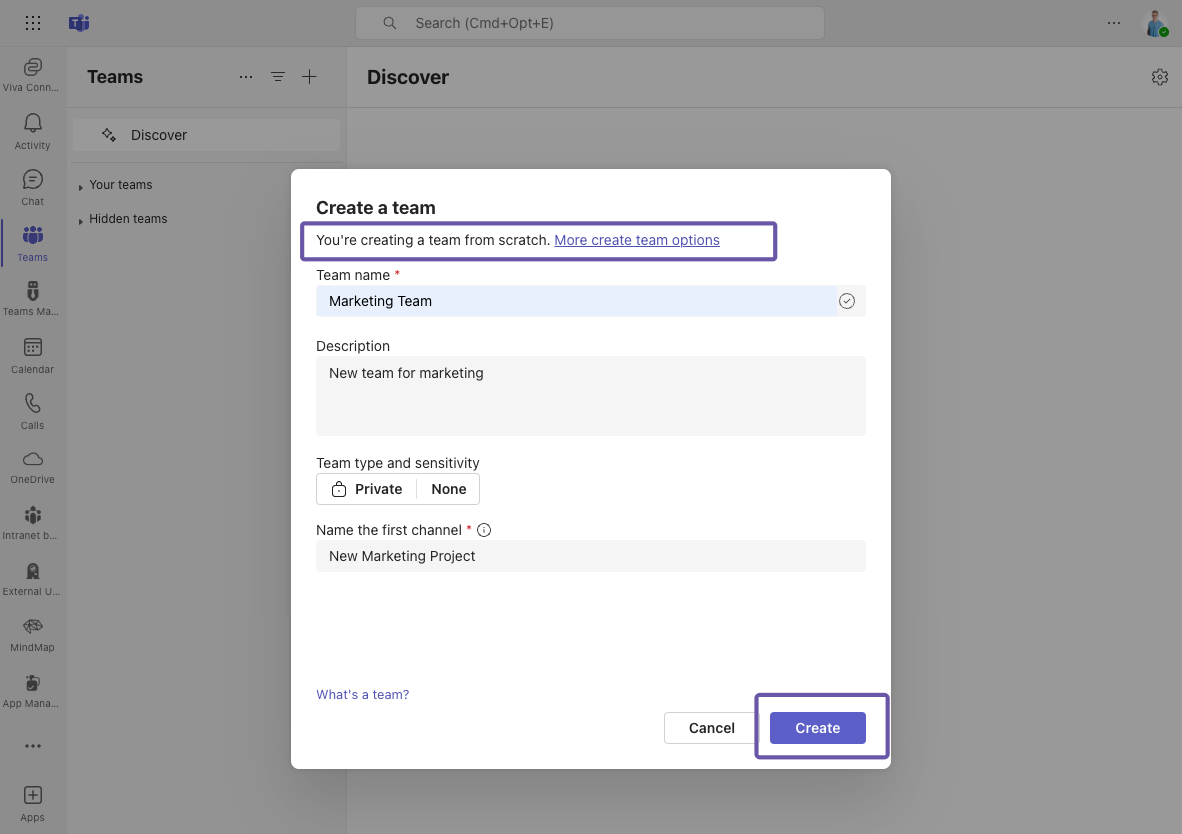
- Once your team is created, click on the three dots “…” next to your team, select “Manage team” and add members and configure permissions.
What are the limitations of classic team creation?
- No control over naming conventions
- No automated lifecycle rules
- No templates, uniform structures, or metadata
- Manual addition of members, channels, and apps
- No automation possible
- Significant administrative effort
This is sufficient for small organizations, but in larger tenants, it can quickly lead to uncontrolled growth.
How do you automate Teams provisioning with API calls?
Teams can be created automatically using the Microsoft Graph API. This method is particularly suitable for developers who want to map individual requirements.
Step-by-step guide to Microsoft Teams provisioning with API calls
Note: To test Teams provisioning with API calls, you can start directly with step 3 and execute the commands in Microsoft Graph Explorer.
- Authorization: Request a token from Microsoft Graph API to obtain authorizations. Consider in advance whether you want to use “Access on behalf of the user” (login with username and password) or “Access without the user” (automated process, without login with user). See here: https://learn.microsoft.com/en-us/graph/auth/auth-concepts
- If you want to automate Teams provisioning, further steps with Azure Function or Flow are necessary at this point. To simplify things, we will show you how to execute commands using Graph Explorer as an example:

- Create team and assign permissions:
Depending on which permissions you want to assign, you can also include the following attributes in the body:POST https://graph.microsoft.com/v1.0/teams Content-Type: application/json Authorization: Bearer {token} Body: { "@odata.bind": "https://graph.microsoft.com/v1.0/teamsTemplates('standard')", "displayName": "Example Team", "description": "Description of Team" }{ "allowCreatePrivateChannels": true, "allowCreateUpdateChannels": true, "allowDeleteChannels": true, "allowAddRemoveApps": true, "allowCreateUpdateRemoveTabs": true, "allowCreateUpdateRemoveConnectors": true } - Add channels:
POST https://graph.microsoft.com/v1.0/teams/{team-id}/channels Body: { "displayName": "Project management", "isFavoriteByDefault": true } - Add members:
POST https://graph.microsoft.com/v1.0/teams/{team-id}/members Body: { "@odata.type": "#microsoft.graph.aadUserConversationMember", "@odata.bind": "https://graph.microsoft.com/v1.0/users('{user-id}')" } - Archive team:
POST https://graph.microsoft.com/v1.0/teams/{team-id}/archive - Delete team:
DELETE https://graph.microsoft.com/v1.0/groups/{team-id}
What are the challenges of provisioning with API calls?
- No integrated governance or approval process
- API alone is not sufficient -> action required to trigger automation (e.g., flow)
- Complex configuration requires in-depth API knowledge and knowledge of the system to be integrated
- Time-consuming when changes are repeated
- Maintenance effort must be planned
API-based provisioning is suitable for automated system integrations, but is difficult to control without additional governance logic.
How do you use PowerShell for Teams provisioning?
With PowerShell, IT admins can create and customize teams directly via script.
Step-by-step instructions for Microsoft Teams provisioning teams with PowerShell
- Open PowerShell and authenticate yourself:
Connect-MicrosoftTeams - Create team:
New-Team -DisplayName "Example Team" -Description "Description" - Add channels:
New-TeamChannel -GroupId {GroupId} -DisplayName "Project management" - Add members:
Add-TeamUser -GroupId {GroupId} -User "{User-ID}" - Set permissions: Depending on which permissions you want to assign, you can use these commands:
Set-Team -GroupId <GroupId> -AllowCreatePrivateChannels $true Set-Team -GroupId <GroupId> -AllowCreateUpdateChannels $true Set-Team -GroupId <GroupId> -AllowDeleteChannels $true Set-Team -GroupId <GroupId> -AllowUserAddRemoveApps $true Set-Team -GroupId <GroupId> -AllowCreateUpdateRemoveTabs $true Set-Team -GroupId <GroupId> -AllowCreateUpdateRemoveConnectors $true - Archive team:
Set-TeamArchivedState -GroupId {GroupId} -Archived $true - Delete team:
Remove-Team -GroupId {GroupId}
What are the challenges of provisioning with PowerShell?
- For full automation, PowerShell scripts may need to be converted to Azure Functions
- Scripts must be created and maintained manually
- No uniform standards or templates
- No standardized interface for users
- Errors in script changes can affect the entire automation process
- Documentation is often missing
PowerShell is efficient for tech-savvy administrators, but it does not scale as a holistic governance solution.
Why should you automate Teams provisioning?
Manual team creation takes time, creates inconsistencies, and increases security risks. Without automation, these problems often arise:
- Different team structures and permissions
- No overview of who is responsible
- No traceability of who created which teams
- No automated archiving or deletion
Recurring tasks can be automated, such as:
- Setting up templates
- Defining naming conventions
- Obtaining approvals
- Adding members and channels
- Implementing lifecycles
- Archiving or deleting inactive teams
Automating these processes significantly reduces manual effort and keeps the Teams environment efficient and compliant.
Advantages of Automation
- Time savings: Manual processes for IT administrators are eliminated
- Consistency: Uniform templates and governance guidelines such as naming conventions, metadata, and lifecycles
- Improved overview: Structured Teams environment
- Fewer errors: Through automated workflows
- Increased security: Automatic application of policies such as guest access and sensitivity labels
Challenges of automation with PowerShell and API calls
- Complexity: Technical expertise and detailed configurations required
- Maintenance effort: Repeated adjustments to scripts necessary
- Lack of user-friendliness: Solutions only with administrator support
- Limited flexibility: Static automation solutions cannot be quickly adapted or expanded
- Lack of governance integration: No native support for governance policies
A third-party tool such as Teams Manager provides a remedy here by bundling and optimizing these processes in a simple user interface.
With functions such as templates, approval workflows and lifecycle management, Teams Manager reduces the effort to a minimum and ensures seamless integration into the existing environment.

How does Teams Manager support team provisioning?
Solutions2Share’s Teams Manager combines provisioning, Microsoft Teams governance and automation in one central app—right in Microsoft Teams.
Features:
- Templates for teams with channels, tabs, and files
- Automatic application of naming conventions and classifications
- Approval processes before creating new teams
- Lifecycle management with rules for archiving and deletion
- Integration directly into Microsoft Teams – no external application required
Advantages over native methods:
- Central platform integrated directly into Microsoft Teams
- No scripts or API knowledge required
- Automated and documented governance
- Uniform, traceable team structure
- Intuitive user interface User-friendly
- Significant time savings for end users and administrators
With Teams Manager, new teams can be created easily, securely, and in compliance with regulations.
How does Teams provisioning work with Teams Manager?
Creating a team with Teams Manager:
- Template creation: An administrator defines the structure of the team (channels, tabs, apps, permissions).
- Rules: An administrator determines naming conventions, classifications, and approvals.
- Team request: Users submit a request using a simple form and can select a template.

- Approval: An administrator checks the request and can then approve or reject it.
- Team creation: After approval, Teams Manager automatically creates the team and applies all predefined settings and policies.
- Lifecycle: After the defined period of time has expired, the team is automatically archived or deleted.
This creates a standardized, efficient process that combines governance and user-friendliness.
See our blog post on Teams Manager Basics for more detailed instructions on Teams provisioning with Teams Manager.
Which method of Teams provisioning is best?
| Method                   | Advantages                                  | Limitations                                |
| ------------------------ | ------------------------------------------- | ------------------------------------------ |
| Microsoft Teams Standard | Simple, no technical barrier                | No standards, no automation                |
| API Calls                | Flexible, scalable                          | Technically complex, no governance process |
| PowerShell               | Automated, repeatable                       | No central control, script maintenance     |
| Teams Manager            | Governance, templates, approvals, lifecycle | License costs, third-party dependency      |
For companies that want to combine compliance and efficiency, tool-based provisioning with Teams Manager is the best choice.
Save time and avoid chaos with Teams provisioning
Teams provisioning is the key to order, security, and efficiency in Microsoft 365. However, manual methods quickly reach their limits.
Automated Teams provisioning with Teams Manager not only saves you time, but also ensures a consistent and clear Teams environment.
Book a free demo now and see Microsoft Teams provisioning with Teams Manager live.