Which Microsoft Teams project management features solve typical project problems?
When projects in Teams start out unstructured, the same thing often happens: too many project rooms, different structures, duplicate files, and unclear responsibilities. The right features help to avoid this.
The most important features for effective Microsoft Teams project management are:
- Centralized storage and sharing of files
- Task management and assignment
- Real-time teams collaboration on documents, spreadsheets, and presentations
- Customizable channels for team communication
- Integrated video conferencing and screen sharing
- Planner integration for task and project tracking
- Support for agile methods, such as Scrum and Kanban
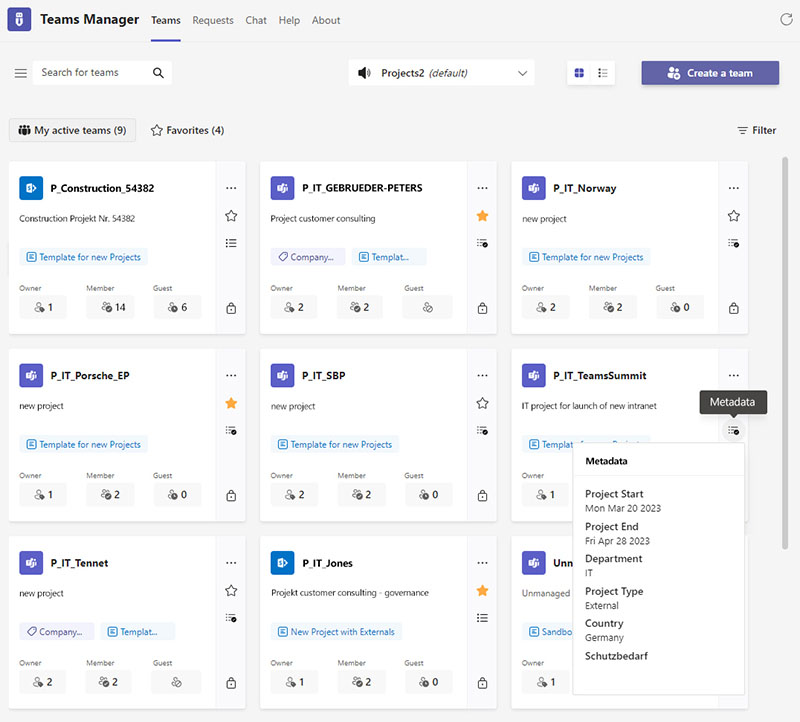
In addition, Teams Manager gives your project managers and members an overview of their project rooms that are currently active, with all additional information such as metadata, project types, and the ability to mark important projects in Teams as favorites.
How do templates and standards help with project planning in Microsoft Teams?
Project planning determines whether a project team starts out structured in Teams or whether it will need to be “cleaned up” later. It is important that you use consistent templates and rules from the outset.
Project planning features in Microsoft Teams:
- Request process for new project teams to ensure that only meaningful new teams are created.
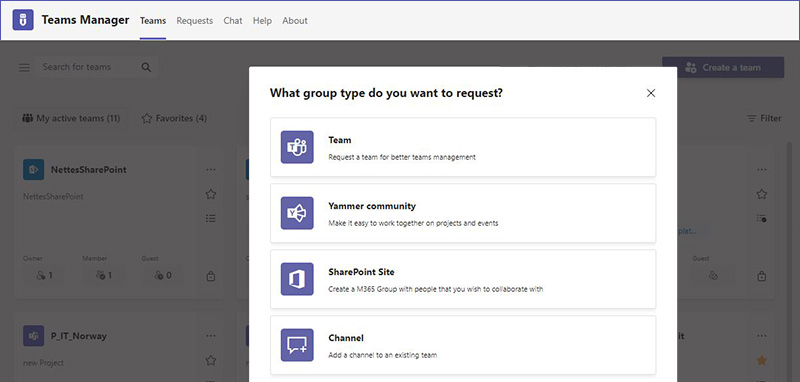
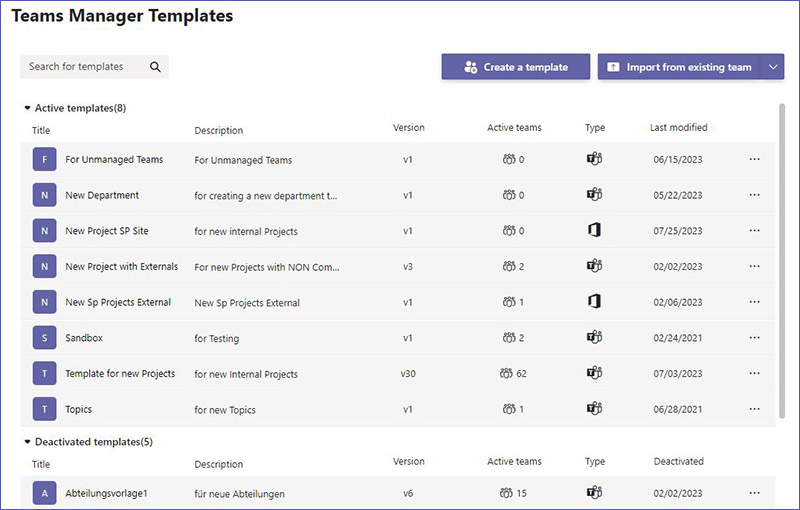
- Project templates in Microsoft Teams (channels, folders, files, Planner, OneNote) to create project rooms based on standardized templates – automatically and without cumbersome manual effort.
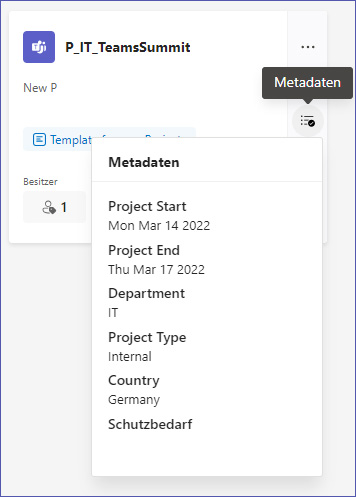
- Query of project metadata (e.g., project number, department, responsible person, duration)
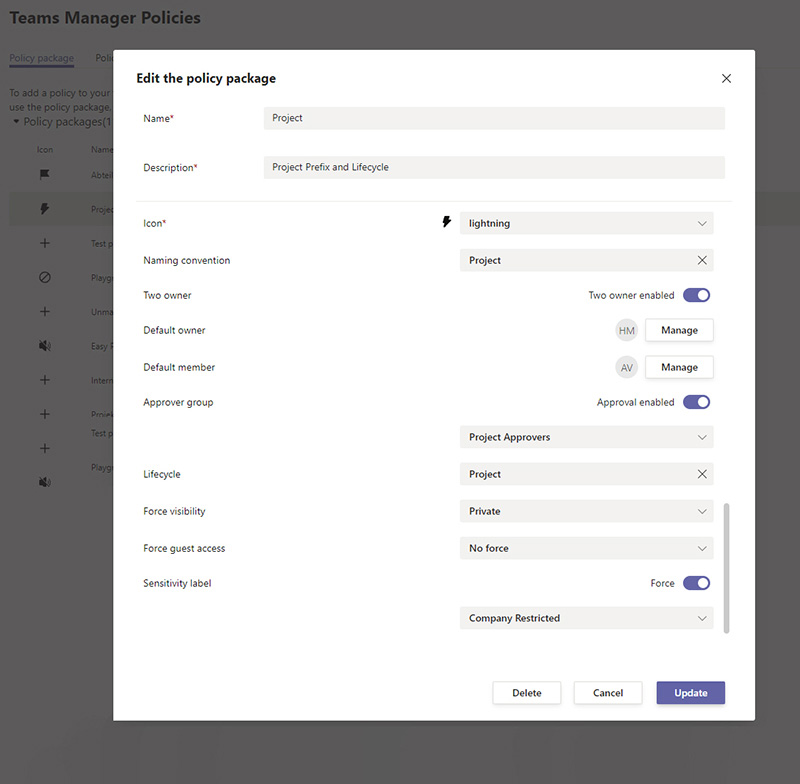
- Naming rules for project teams and Microsoft 365 groups for a better overview
Which Teams features help with collaboration and security in project implementation?
Teams supports real-time collaboration. To keep this secure in projects, you need clear rules for external participants and channel types.
Features for project execution in Microsoft Teams:
- Guest access when your users invite guests to Teams and settings for external project members
- Sensitivity labels to control projects according to protection requirements
- Channels for communication and coordination (public, private, shared)
- Meetings, screen sharing, and recordings for coordination and documentation
Especially with a large number of existing projects, governance rules for channels and guests are often crucial to ensure clean collaboration and control.
How does project control work in Microsoft Teams with Planner, dashboards, and Lifecycle?
Transparency is necessary for control in projects: task status, deadlines, bottlenecks. In Teams, this usually runs through Planner in practice.
Project control features in Microsoft Teams:
- Planner dashboard: status, due dates, workload, progress
- Kanban views and filters by person, priority, or status
- Recurring tasks via templates (Planner templates) for standardized project workflows
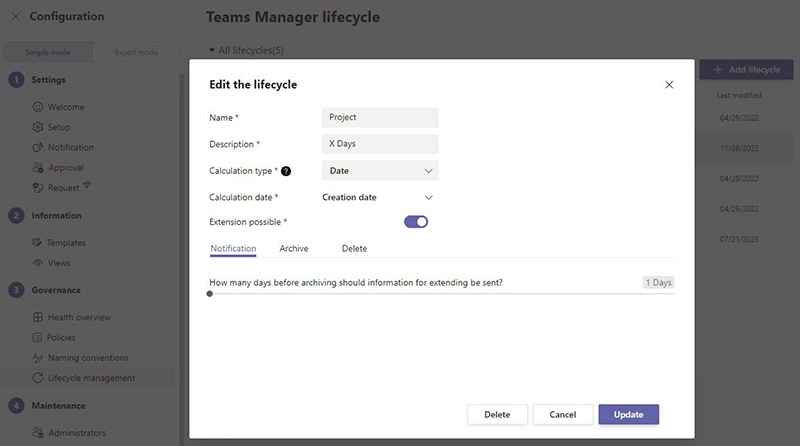
With automated lifecycles, you can determine what happens after the project:
- Complete projects
- Archive project rooms
- Remove or restrict access
- Maintain structure for auditing and traceability
Such lifecycles can also be triggered by project-related metadata:
What features are available for progress tracking with To-Do, Calendar, and Kanban?
Microsoft Teams offers various tools for tracking project progress, including:
- To-Do Lists: Create, assign, and track tasks (usually via Planner)
- Calendar: Make milestones and deadlines visible via Outlook sync
- Kanban boards: Display tasks in phases and identify bottlenecks
- Templates for recurring projects: Predefined task lists reduce manual effort
These tools can save you time and minimize errors, as project managers don’t have to start from scratch every time.
Teams native vs. Teams Manager: Which project management features are missing?
Microsoft Teams offers many features for project management. However, project work often fails due to a lack of standardization, overview, and lifecycle processes. This is exactly where Teams Manager comes in.
| Project management need                                      | Microsoft Teams native            | Teams Manager |
| ------------------------------------------------------------ | --------------------------------- | ------------- |
| Control project team creation via request process            | Limited, depends on configuration | ✓             |
| Project templates for channels, folders, Planner and OneNote | Manual setup                      | ✓             |
| Governance: enforce naming rules and standards               | Limited                           | ✓             |
| Overview of all project workspaces with metadata             | Limited                           | ✓             |
| Lifecycle management: automatically archive projects         | Partial                           | ✓             |
Microsoft Teams quickly reaches its limits in everyday project work when standards, governance, and lifecycle are lacking.
Teams Manager complements the native functions in precisely these areas and ensures that project management in Microsoft Teams remains structured, traceable, and manageable in the long term.
Teams Manager For Project Management in Microsoft Teams
Teams Manager supports project teams with standardized templates for project rooms, folders, and task lists. Naming conventions ensure clarity, while lifecycle rules automatically archive completed projects.
Let us show you how Teams Manager can make your work in project management easier – book a free demo with us today!