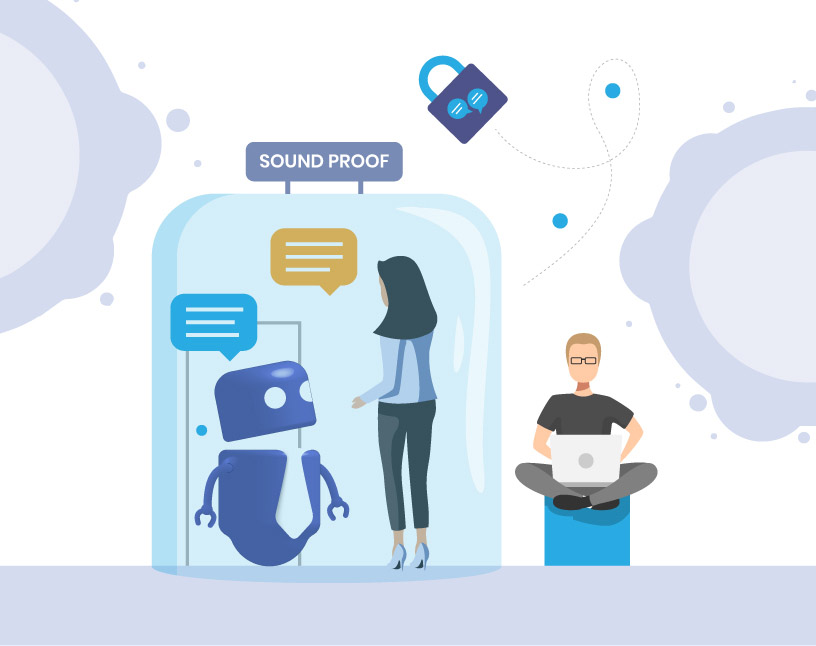
Private channels in Microsoft Teams allow a subset of team members to collaborate on sensitive topics without creating an entirely new team. Files are stored on a separate SharePoint site with independent permissions, which keeps documents and conversations strictly limited to the selected audience.

Who should read this article?
This blog post is intended for IT administrators and decision-makers who need to understand what private channels are, how they work, when to use them, and how they differ from standard and shared channels.
If you’re looking for governance for private channels, e.g. policies, naming rules, lifecycle controls, or approval processes, please see our dedicated article here:
What is a private channel in Microsoft Teams?
First, let’s take a a step back:
The basic idea of Teams consists of two roles: owners and members. The team serves as a security boundary, and the team is only visible to owners and members (and invited guests). However, your membership in a team does not mean that you always want to be informed about all things that are going on in this team. This is where the channels come into play.
Channels give us the possibility to sort content thematically. Thus, the possibility is given of letting you only display the information which interests you the most, which does not prevent you, however, from looking at the information in the other channels, if you would like to. They function as communication boundaries. In addition, the files are also sorted directly into channel-specific folders in the corresponding SharePoint document library.
Now, this structure is useful and practicable, but there are also use cases for which the previous features are not sufficient. A good example is the “secret project”. In this case, you work with selected colleagues from your team on a sensitive project whose information must not be made public.
A private channel is a channel inside an existing Team, but visible only to selected members of that team. Its files are stored in a separate SharePoint site rather than the Team’s main site, which keeps access strictly isolated.
Typical examples:
- HR or payroll topics visible only to HR staff
- Contract negotiations within a sales team
- M&A workstreams with limited internal access
- Customer-specific tasks that shouldn’t be shared with the full team
What is the difference between standard vs. private vs. shared channels?
In contrast to standard channels, private channels offer, as the name suggests, privacy, which means they form a second security boundary next to the team itself. Private channels, like the team itself, also have an owner and members who consist of members of the team (or invited guests). Channel owners manage the owners and members of private channels; however, they do not have to be the team owner! This comes in handy when the owner of the team is responsible for the team but is not the project manager.
| Type | Visibility | Works best for |
| --- | --- | --- |
| Standard channel | All team members | General collaboration |
| Private channel | Selected team members only | Confidential topics within the team |
| Shared channel | Internal and external users without full team membership | Cross-department or cross-tenant collaboration |
If you’re unsure whether a private or shared channel is the better fit, check Microsoft’s comparison of channel types or see our governance article for policy-level decision guidance.

Do private channels provide more security?
When a private channel is created, Microsoft Teams automatically creates:
- A dedicated SharePoint site for its files
- A separate membership list based only on channel members
- Channel chat and files that stay invisible to the rest of the team
Even team owners do not automatically gain access unless they are added to the private channel.
Microsoft provides this clear chart where you can check who can see what in relation to private channels:

Microsoft has also provided an overview regarding executable actions:

Current limits for private channels (as of late 2025)
| Limit | Value |
| --- | --- |
| Private channels per team | Up to 30 (within the 1,000 total channel limit) |
| Members per private channel | Up to 250 |
| SharePoint site per private channel | 1 separate site |
| Guests | Supported, but must be added to the channel explicitly |
Microsoft has announced higher limits (1,000 private channels and 5,000 members per channel), but these are still in staged rollout. Make sure to confirm the limits in your tenant if you are planning large-scale structures.
Can you schedule meetings in private channels?
Microsoft’s current documentation states that scheduling channel meetings is not yet supported in private channels.
This is expected to change with the updated architecture rollout. Check your Message Center or roadmap for updates.
When use a private channel instead of a new team?
Choose a private channel if:
- The discussion belongs inside an existing team
- You only need access for a small subset of members
- You want to separate sensitive files from the main team library
Choose a new team if:
- The topic becomes a long-term project with its own apps, tabs, planner boards, etc.
- The audience grows beyond a small and stable group
- You want full team-level settings, classification, or lifecycle separation
For rules on who is allowed to create private channels, see:
How to create a private channel in MS Teams (quick guide)
Time needed: 1 minute
Here is a quick step-by-step explanation on how to create new private channels in Microsoft Teams.
- Open Team options Click on the 3 dots “…” next to the Team name where you want to add a private channel.
- Click “Add channel” Click on “Add channel”.
- Enter name and description Name and describe the channel (mentioning confidentiality is recommended)
- Select “private” In the channel type drop-down, select “private”.
- Select layout Choose between the old post layout and the new threads layout.
- Click “Create” Click on “create” to finish creating the private channel.
For naming standards, approval workflows and sensitivity guidelines, take a look at our blog post Private Channel Governance in Microsoft Teams.
Real-world scenarios for private channels in Teams
| Scenario | Why use a private channel? |
| --- | --- |
| HR salary planning | Same HR team, only 3 people need access |
| Sales bid preparation | Restrict pricing files from the rest of the sales org |
| Audit / internal review | Only auditors need access, but still tied to parent team |
| Customer-specific documents | Keep project docs inside one Team but isolated |
Do you need governance, automation or reporting for private channels?
This article focuses on how private channels work, not how to control them at scale.
If you need:
- Naming standards
- Approval workflows
- Private channel lifecycle rules
- Owner and member recertification
- Reporting across all private channels
… then read our dedicated article: Private Channel Governance in Microsoft Teams.
Or book a free demo to see how Teams Manager automates channel creation and structure!