

Microsoft has implemented a way to further individualize your channel names in Microsoft Teams by adding images in the form of emoji icons to the name.
This may, at first glance, seem like a distraction and waste of time. But there is actually good reasoning behind using emojis in your channel names:
- Add emojis to only a few channel names and make those stand out more. This way you can easily put emphasis on important channels, make them stick out and be seen quickly.
- Add emojis to all your Microsoft Teams channels and use matching images to illustrate the purpose better. Our brain can interpret images faster than text characters, so this will add another little bit of user-friendliness to your Microsoft Teams environment. In Microsoft Teams, emojis can transport as much meaning as in chat messages, for examples.
- Another great idea is to use simple emojis like colored squares or dots in traffic-light colors for projects to immediately show the current status. If you manage a lot of projects in Microsoft Teams, take a look at this blog post for best practices for project management in Teams.
- In general, the solution described below also allows you to insert MS Teams emoji in chats. It also works in other programs!
Use naming conventions, lifecycles, and templates for even more structure and a better overview across your teams and channels in Microsoft Teams.
Adding an emoji image to your Teams channel is really simple
Time needed: 2 minutes
Follow these 4 steps to use emojis in your Teams channel:
- Create new channel without the emoji
First, create the new channel without the image, then afterwards edit it and add the emoji to the name.
Why not add the emoji icon right away? When a new channel is created in Microsoft Teams, several things happen in the background. For example, a folder connected to the channel is created in SharePoint, as well as a link to that folder. And this folder in turn may be connected to Windows Explorer, if it is synced in OneDrive. So there are several instances where we want to have a nice basic text-character name without anything special – at least during the creation process. After everything is created, we can edit the name afterwards, which will not change the connected folder name or link. - Edit your channel
So now that you have created your Teams channel, select "Edit the channel".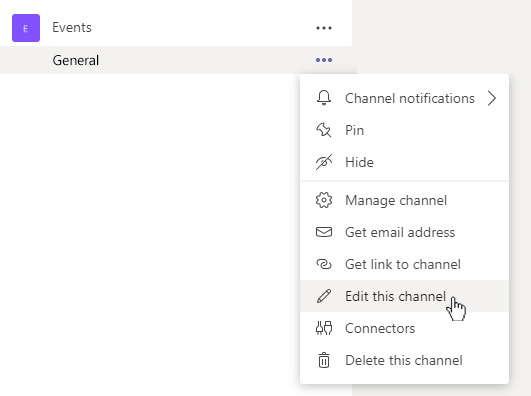
- Use keyword shortcut and choose emoji
You just need to choose an emoji and add it to your channel name. For this, you might want to remember this keyboard shortcut: press and hold the Windows key and press the period key.
"Windows" + "."
For Macs, please use this combination:
"Command" + "Ctrl" + "Space"
This will call up the emoji selection popup. Unfortunately, it only works in Windows 10; for older Windows versions the only option is to use the touch keyboard. Now you can choose your emoji.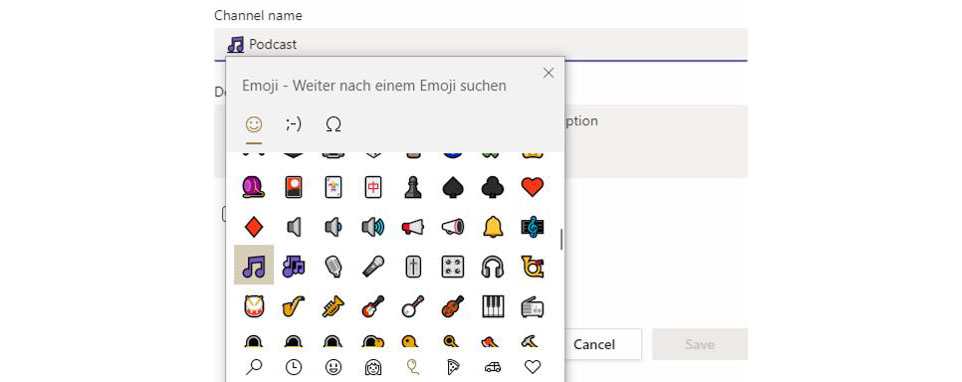
- Save your edits
And that's it! Click on Save and voilá, you have your individualized channel name with Teams emojis.
The next question is, of course, can we add customized images as Microsoft Teams emojis or icons for example in our company colors? Not yet, unfortunately, at the moment there is no way to use Microsoft Teams custom emoji. But who knows...

While customizing emojis in MS Teams is not yet possible, customizing governance, security and compliance settings very much is! Take a look at the apps Teams Manager and External User Manager for advanced customizing option that Teams alone can't provide.