
Why is an overview of all M365 guests important?
When working with external parties, it becomes increasingly difficult over time to keep track of and manage guests in Microsoft 365 environments. Over time, hundreds of guest accounts are created: former service providers, customers, freelancers. Many of them remain active even though they no longer need access.
It becomes increasingly difficult for IT administrators, governance managers, and compliance teams to maintain an overview:
- Which guests are currently active?
- Who has access to sensitive data?
- Which guests were added manually, outside of governance processes?
Without central management, security gaps and compliance violations arise. The first step is therefore to fully identify all guests, regardless of when and how they were added.
With Solutions2Share’s External User Manager you can not only view all M365 guest users but also automate guest lifecycle management and onboarding in Teams and M365 Groups, ensuring that all guests are properly managed. Learn more about it below.

How can you view all M365 guests?
There are four ways to get an overview of all guest users in M365.
- In the Microsoft 365 Admin Center
- In the Entra Admin Center (formerly Azure AD)
- With PowerShell
- With External User Manager
1. Where can you view all M365 guests in the Microsoft 365 Admin Center?
In the M365 Admin Center, you’ll get a simple list of all your guests.
How to do it:
- Log in to the Microsoft 365 Admin Center.
- Go to Users > Guest users.
- You’ll now see all guest users.

Limitations:
- No option to view activities.
- No lifecycle function or other management options.
2. Where can you view all M365 guests in the Microsoft Entra Admin Center?
The Microsoft Entra Admin Center provides an overview for managing identities.
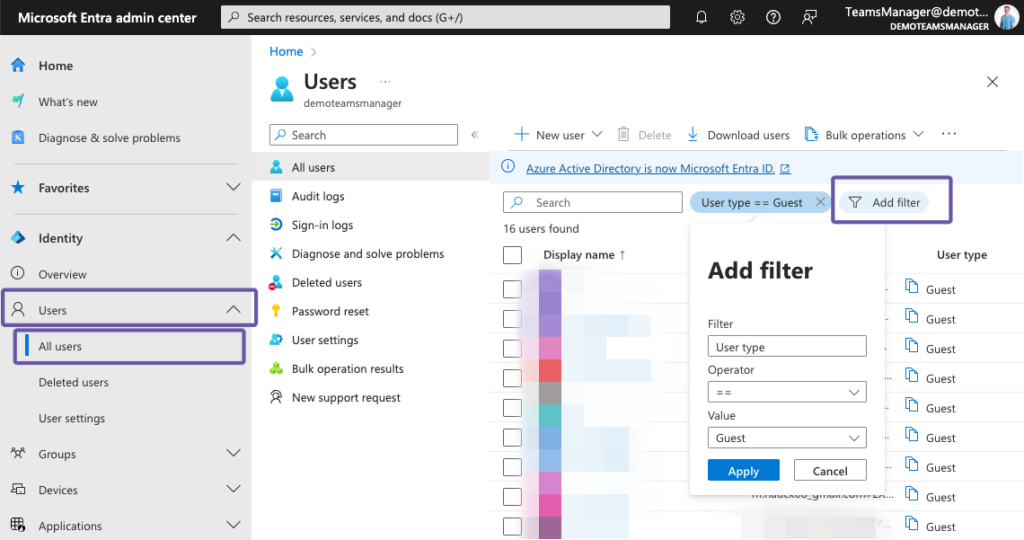
- Open the Entra Admin Center.
- Navigate to Users > All users.
- Filter by User type = Guest.
You’ll now see your guest users with some identity-related details.
Limitations:
- Limited information about your guest users.
- No option to manage these guests, e.g., with lifecycles or onboarding.
- High manual effort, no automation.
- No central management via Teams.
3. How can you view all M365 guests with a PowerShell script?
Experienced IT administrators can use a PowerShell script to gain more detailed insights into M365 guests, but this requires technical knowledge to set up.
This allows you to quickly display and export an overview of your M365 guests:
- Open PowerShell and connect to your M365 account by running:
Connect-MgGraph -Scopes "User.Read.All","Group.ReadWrite.All" - Once connected, use the following command to view all guest users:
Get-MgUser -All -Filter "UserType eq 'Guest'" - To export the guest user list to a CSV file, use:
Get-MgUser -All -Filter "UserType eq 'Guest'" | Select-Object DisplayName, UserPrincipalName | Export-Csv -Path "M365_Gastbenutzer.csv" -NoTypeInformation
Limitations:
- No further insights.
- No functions for approving or managing guests.
- No automation, no lifecycle management.
4. How can you view all M365 guests in the External User Manager?
The External User Manager provides an overview and comprehensive management options for all your M365 guests.
To view all your M365 guests:
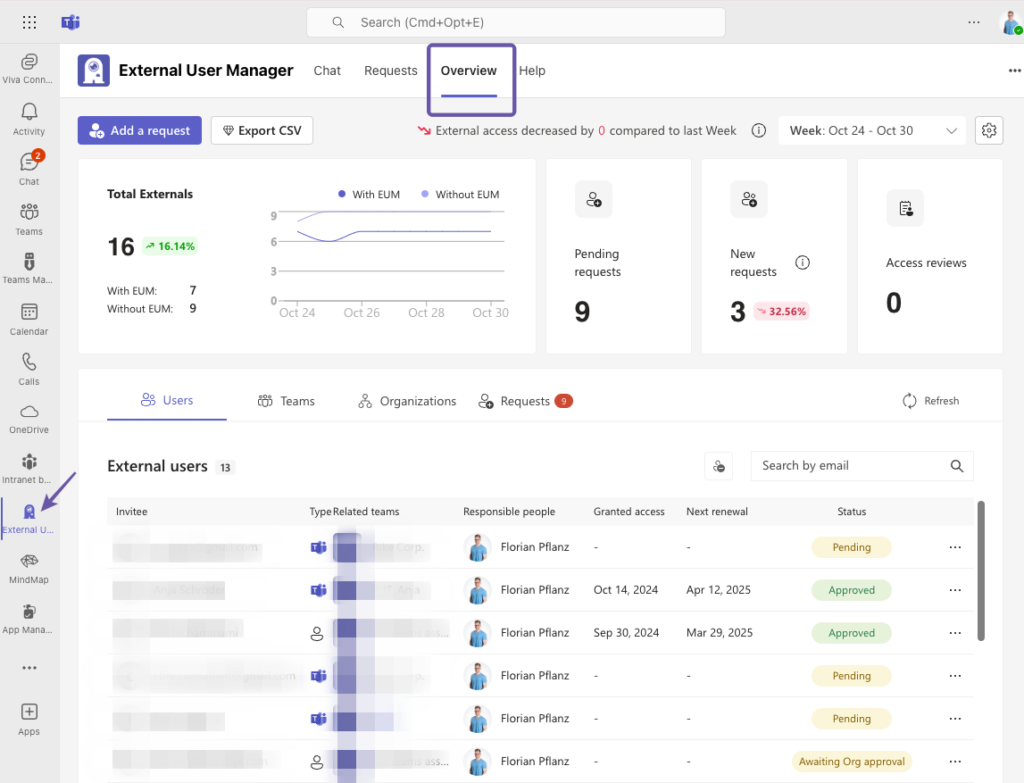
- Open the External User Manager app in Teams.
- Go to the Overview tab.
- Here you’ll get a complete overview of your guests.
The Guest Import feature in External User Manager searches the entire Microsoft 365 tenant and displays all existing guest accounts, including those that have not yet been added and managed with External User Manager.
How to do it:
- Open the External User Manager app in Teams.
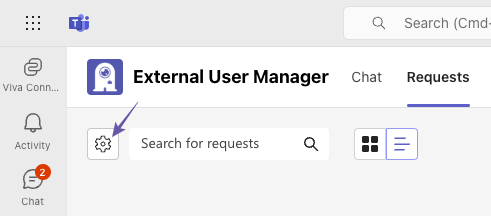
- Go to Requests > Configuration (gear icon)
- Go to Automation > Guest Import.
- Click Check to start the scan.
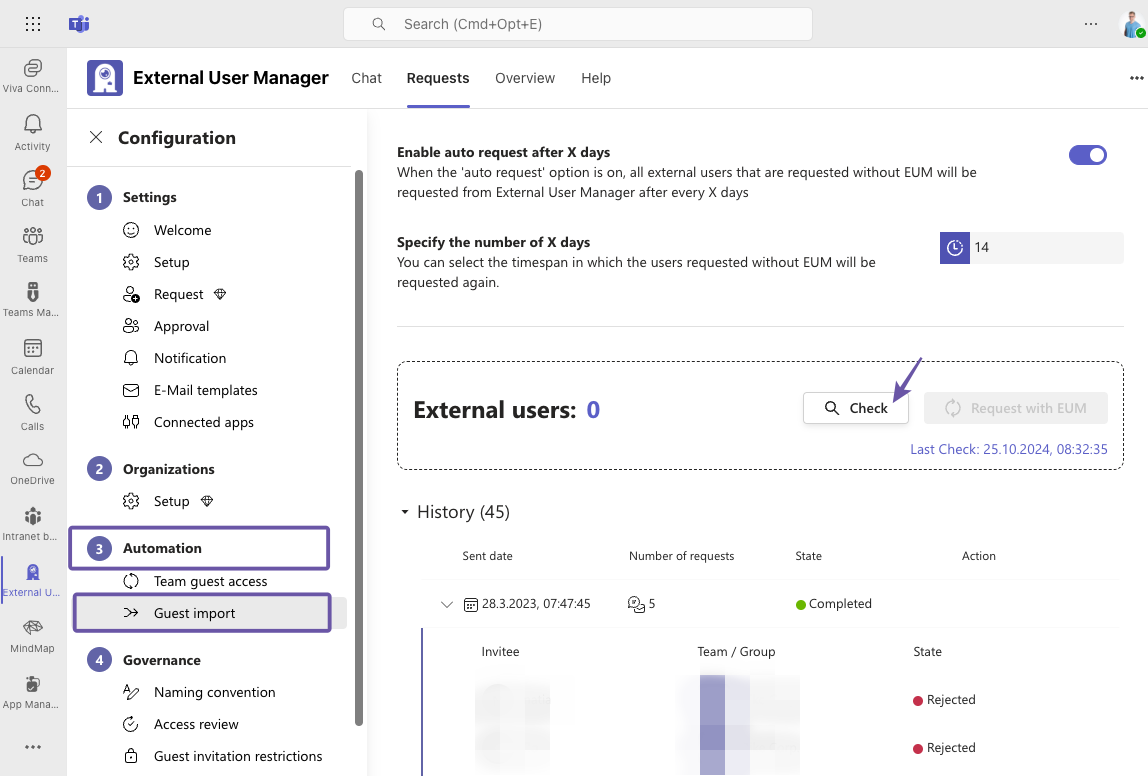
- All unmanaged guests will now be displayed.
- To manage these guests with the External User Manager, click Request with External User Manager.
Benefits:
- Complete overview of all M365 guests and those who are not yet managed.
- Ability to manage unmanaged guests with approval workflows, onboarding processes, and lifecycles.
- Complete automation, significant time savings for IT administrators.

What are the limitations of native M365 methods for guest overview?
Microsoft offers several ways to view guests. However, none of these methods provide a complete, dynamic, and easy-to-use overview.
- The Microsoft 365 Admin Center shows guests, but not when they were last active or where they have access.
- The Entra Admin Center (formerly Azure AD) is more detailed, but complex and difficult for non-admins to use.
- PowerShell can be used to export reports – but only manually and without lifecycle logic.
Comparison: Native methods vs. External User Manager
| Feature | Microsoft 365 / Entra | External User Manager |
| --- | --- | --- |
| Display guests | Yes, but distributed across multiple portals | Central overview in one app |
| Activity status | Only via manual queries | Complete, including last login |
| Membership in teams/groups | Nur über manuelle Abfragen | Automatically visible |
| Lifecycle management | Manually | Automatically with rules and expiration dates |
| Approval processes | Not available | Integrated, multi-level possible |
| History/audit logs | Limited | Fully documented |
Conclusion: While native tools provide insight, External User Manager ensures complete governance and automation.
Can you import guests in the External User Manager and manage existing guests?
The new guest import feature captures existing guests, including those added before External User Manager installation or invited without External User Manager, and lets you manage them automatically:
- Automatic inclusion of existing guests: External User Manager checks which guests are not yet managed and makes it easy to include them in External User Manager management.
- Auto approve: Decide if pre-existing guests are automatically approved or receive a request in the External User Manager.
- Skip onboarding: Existing guests can be added to the lifecycle without onboarding, or they can go through the onboarding process.
- Reports: Track the status of your guests and their onboarding process.
- Additional function: Auto request after x days: Automate regular reviews and requests for new guests – such as weekly – and bring them into the lifecycle and onboarding process.
How to keep track of all guests in M365
Managing guest access in Microsoft 365 is almost impossible without automation.
External User Manager closes this gap with a central overview, automatic control, and clear processes.
This allows you to see all guests in your tenant, regardless of when and where they were created, and manage them securely, transparently, and compliantly.
Want to keep track of your M365 guests and ensure Microsoft 365 and Microsoft Teams compliance and security?
Book a demo now and find out how easy it can be to manage guest users.