IT administrators repeatedly tell us that they lose track of their M365 guests and don’t know who is accessing what and when.
The result:
Security risks
High manual effort
Lack of transparency across the entire tenant
In this article, we answer the 25 most frequently asked questions about M365 guests we receive from projects, workshops, and support cases.
The FAQ provides a concise overview of how to manage your guests in M365 groups and Teams and what options you have with Microsoft standard functions or the External User Manager (EUM) to reduce risks and simplify processes.
The External User Manager was developed specifically for the secure and efficient management of M365 guests. Approval workflows, lifecycle management, automated access checks, and compliance policies give you full control over guest access.
Make managing M365 guests easy!
Microsoft 365 guest management can be challenging and requires appropriate measures for more control and Microsoft 365 security. The External User Manager makes it easy to manage guest access effectively and securely.
The 25 most frequently asked questions about M365 guests
How do I find all M365 guests in my tenant?
To view all M365 guests, you can use the Microsoft 365 Admin Center, the Microsoft Entra Admin Center, or a PowerShell script. However, this requires several manual steps.
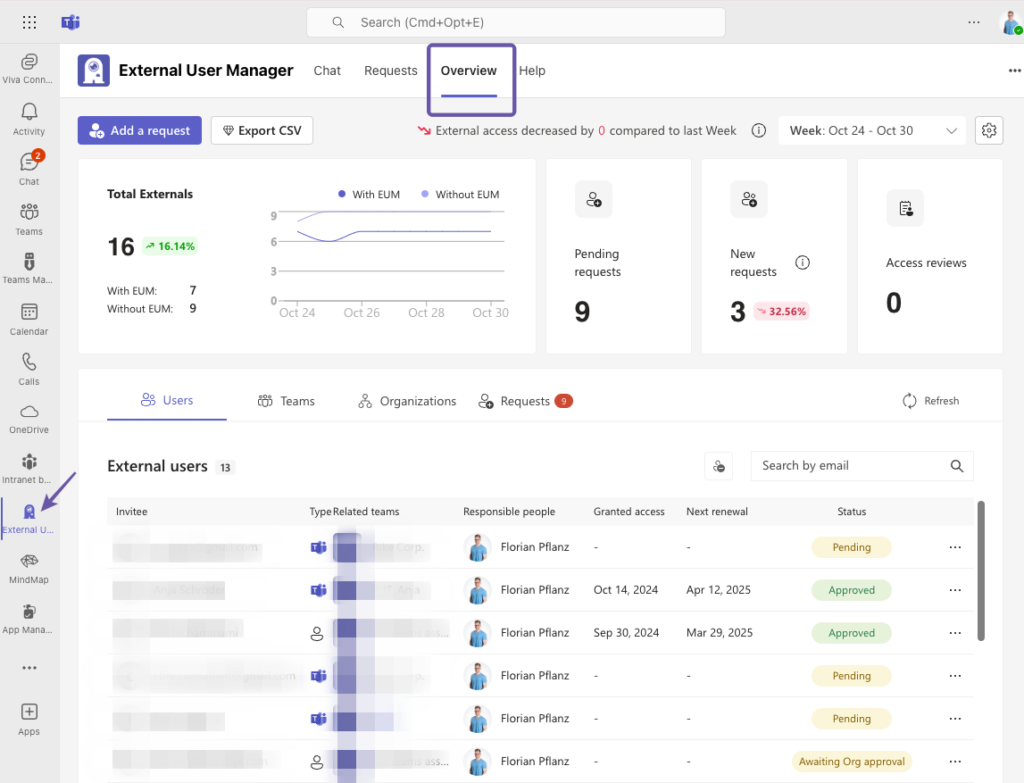
In the External User Manager, you can directly view all guests with their important details through a central dashboard. You can also specifically search for unmanaged guests and easily incorporate them into your guest management.
The External User Manager provides additional controls, such as access reviews, lifecycle management, reporting, and the ability to set individual compliance policies.
Can I restrict guest access to specific teams only?
Yes. Guest access can be disabled or explicitly allowed for specific teams e.g. via sensitivity labels or PowerShell.
The External User Manager makes control easier, as access checks can be performed on a team-specific basis.
Microsoft Entra provides basic options for managing external identities and cross-tenant settings. Some important settings can also be found in other Microsoft admin centers.
External User Manager combines all security and compliance features in one app.
Can I blacklist or whitelist domains for M365 guests?
Yes. In Microsoft Entra, you can blacklist or whitelist domains. In the external collaboration settings, you can enter the domains for which invitations should be allowed or denied.
In External User Manager, managing domain restrictions is easier and more centralized.
Microsoft does not offer automated removal of inactive guests. These remain in M365 groups and Teams and threaten the organization and security of your M365 environment.
External User Manager identifies inactive guests and automatically removes them based on defined time periods.
How do I invite M365 guests to Teams?
If your guest settings are enabled and you have configured your organization-wide settings in the Teams Admin Center, you can add guest users.
To do this, go to the three dots (…) in the respective team, click on Add member, and enter the guest’s email address.
The External User Manager adds approvals, compliance checks, and additional security mechanisms to the process.
What are the risks of guest access to OneDrive data?
Without regular review, guests may retain access to files longer than intended. The risk of data leaks increases.
External User Manager supports you with regular and automated access checks.
Can I convert M365 guests to members?
No. M365 guests cannot currently be converted directly to members.
The reason is that member accounts require an email address that belongs to the organization’s domain, while guest accounts use external domains. To add guests as members, they need an account in your organization’s domain.
How can I see which files M365 guests are accessing?
In the Microsoft 365 Admin Center, go to Reports > Usage. There you will find reports on which files have been viewed, downloaded, or edited by guests.
In the SharePoint Admin Center, you can track activities under Reports.
How do authenticated and anonymous M365 guests differ?
Authenticated guests sign in with a Microsoft account. Anonymous guests only get access via share links.
How can I restrict guest sharing for individual SharePoint sites?
In the SharePoint Admin Center, go to Sites > Active Sites and select the SharePoint site you want to configure. Under Settings look for External file sharing and set it to Only people in your organization.
Can M365 guests accept compliance policies?
Not with standard Microsoft tools.
External User Manager provides an onboarding portal where guests can actively confirm binding compliance policies and documents (GDPR, NDA, etc.).
How do I set up an approval workflow for M365 guests?
Microsoft does not provide a built-in approval workflow.
External User Manager offers an approval process that ensures only authorized guests are granted access.
How do I remove M365 guests who no longer need access?
Microsoft only offers manual options for revoking guest access for M365 guests.
The External User Manager automatically removes guest users with lifecycles based on predefined rules or inactivity.
How does EUM help minimize data loss?
The External User Manager supports you with:
Approval process for guest users
Regular access reviews
Lifecycles based on predefined rules or inactivity
Detailed reports on M365 guests
These features reduce the risk of accidental or unwanted data sharing.
Can I allow M365 guests only for certain regions?
Yes. In the Azure Active Directory Admin Center, you can create a new policy under Conditional Access. Under Users, select guest users to whom the policy will apply. Under Network, you can then specify which geographic regions are allowed or blocked for access.
How long do M365 guests retain access to content?
By default, until access is manually revoked.
External User Manager automatically revokes access when the guest is removed.
How do I ensure time-limited access for M365 guests?
Standard Microsoft tools do not offer automation for this.
External User Manager enables time-based processes and automatic removal of M365 guests.
Microsoft does not offer automated inactivity checks.
External User Manager regularly identifies inactive guests and removes them automatically on request.
Written by
Florian Pflanz
Chief Commercial Officer & Governance Specialist
Florian Pflanz has more than 8 years of experience with Microsoft 365 and has supported over 250 workshops on Teams governance. His focus lies on lifecycle management, provisioning, and compliance requirements in regulated industries. He shares best practices with IT admins and decision-makers to reduce complexity and strengthen secure collaboration in Teams.