Why is Microsoft Teams guest access both useful and risky?
Guest access in Microsoft Teams is one of the most powerful collaboration features. You can easily add partners, suppliers, or clients to your teams. However, without clear governance:
- Guests remain active long after projects end.
- Sensitive files stay accessible without control.
- IT lacks a clear overview of who has access to what.
- Compliance requirements are not consistently enforced.
👉 The result: a mix of security risks, shadow IT, and admin overhead.
What is the difference between guest access and external access?
- Guest access: External users are invited into a Team or Microsoft 365 Group. They get access to chats, files, meetings, and channels.
- External access: Allows users from other domains to chat, call, or schedule meetings with your users. They cannot access internal teams or files.
In short:
- Guest access = collaboration inside Teams.
- External access = communication across domains.
Checklist: How to enable guest access
In order to enable guest access in Microsoft Teams:
- In the Teams Admin Center, navigate to Users → Guest access.
- Turn on Allow guest access in Teams.
- Configure what guests can do (chat, @mentions, file sharing, meetings).
- In Entra ID(Azure AD), review external collaboration policies.
- Assign the Guest Inviter role to the right people.
Step-by-step: How to invite a guest in Microsoft Teams (with screenshots)
Time needed: 1 minute
Adding guests to Microsoft Teams can be done by following these steps:
- Open team options
Log in to your Microsoft Teams account and click on the three dots next to the team you want to add the guest to.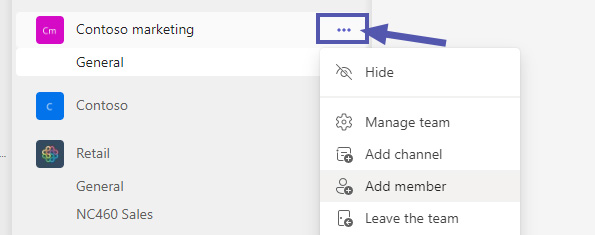
- Click on “Add Member”
Click on the “Add Member” option.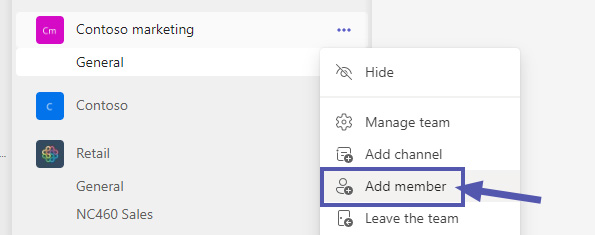
- Enter the guest’s email address
Enter the email address of the person you want to invite as a guest.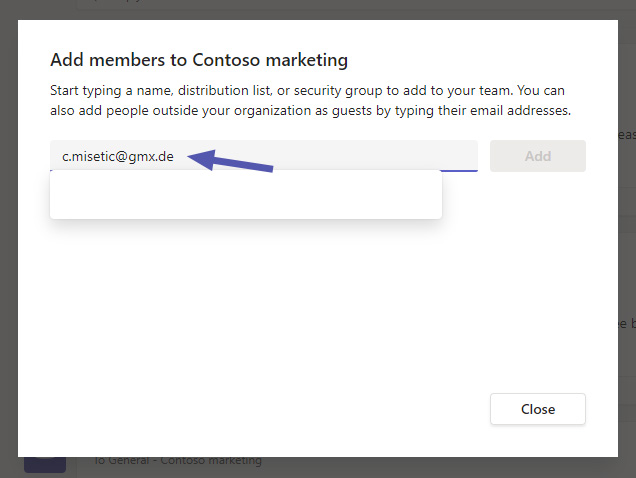
- Add as guest
Click on “Add [email address] as a guest”.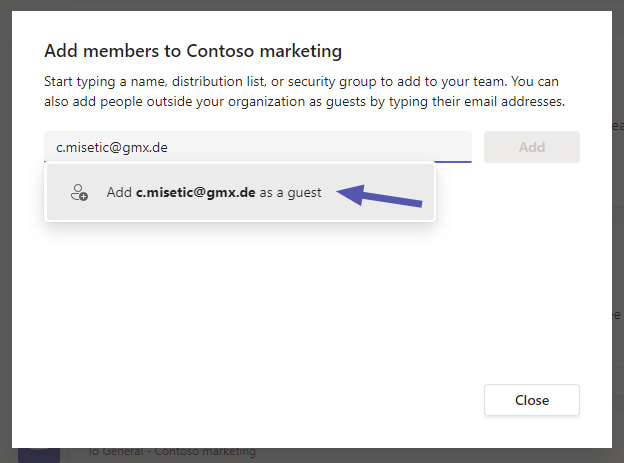
- Optional: edit guest name
Click on the pencil icon next to the guest’s name to edit the name. The addition “(Guest)” is default and can’t be changed.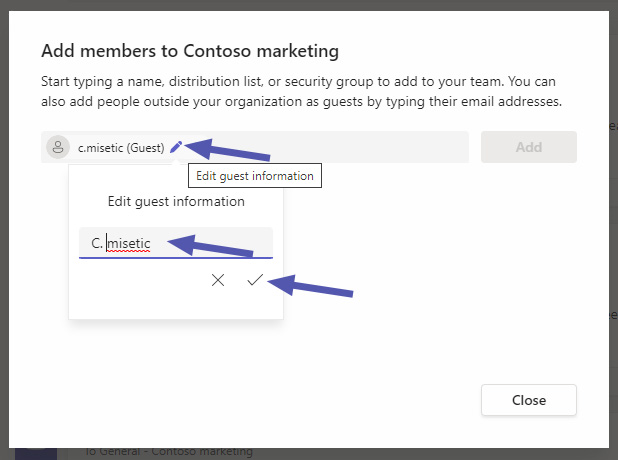
- Click on “Add”
Click on the “Add” button to add your guest.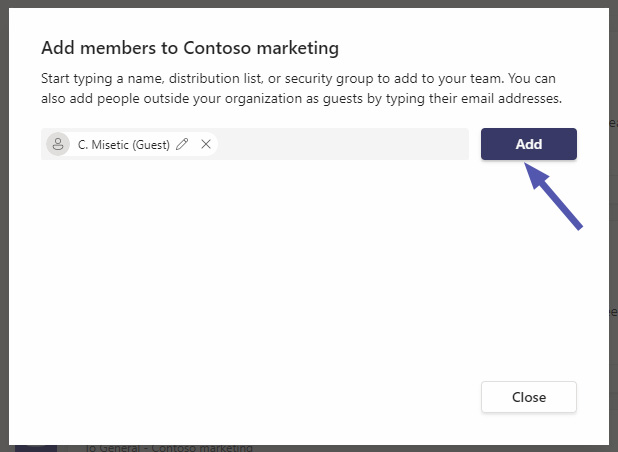
What permissions do guests have?
By default, guests can:
- Participate in channel conversations
- Access and edit shared files
- Join Teams meetings
They cannot:
- Create new teams
- Browse the organization directory
- Change security settings
💡 Admins can fine-tune permissions in the Teams Admin Center.
Where Microsoft stops – and how External User Manager helps

Microsoft provides the basics — but lacks automation, structured lifecycle management, and compliance features.
| Aspect | Microsoft native | With External User Manager |
| --- | --- | --- |
| Guest invitation | Manual | Request & approval workflows |
| Permissions | Basic | Whitelists & guest metadata |
| Lifecycle | Limited expiration | Automated lifecycle & removals |
| Reporting | Minimal | Full dashboards & audit trails |
| Compliance | Manual checks | Onboarding portal, NDA & policy acceptance |
👉 With External User Manager, IT ensures guest access stays controlled, compliant, and automated.
Conclusion: From collaboration to governance
Guest access can make Microsoft Teams either a collaboration powerhouse or a compliance risk.
With the External User Manager, you move from chaos to clarity: approvals, lifecycles, and compliance checks are automated.