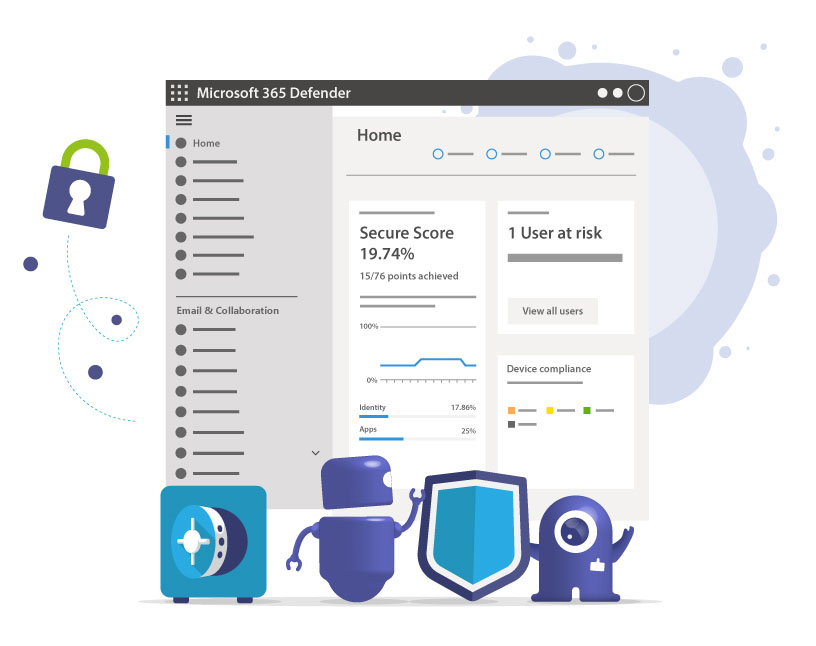
In this post, we look at key security configurations for Microsoft Teams and how to apply them without hurting collaboration. We’ll cover MFA/2FA (Multi-Factor Authentication or Two-Factor Authentication), Conditional Access, Security Defaults, Data Loss Prevention (DLP) for Teams messages, Microsoft Defender for Office 365 (Safe Documents, Safe Links) and Defender for Cloud Apps. Where helpful, we’ll note current product names and admin centers.
This is the last part of our three-part blog series about Microsoft Teams Security. Here we will dive into Microsoft Teams Security settings related to basic as well as high-level security aspects.
In Part 1, we looked at settings for collaboration options in Microsoft Teams, while part 2 covered the specific configuration of compliance settings in Microsoft Teams.
Before we get started: Microsoft provides an excellent, up-to-date guide on security in Microsoft Teams – their security framework, their SLD (security development lifecycle), etc. Depending on how deep you want to dive into Microsoft Teams security settings, make sure to familiarize yourself with the document.
But now let’s take a look at the most important topics ourselves!
1. What is MFA / 2FA? – Multi-Factor Authentication for Microsoft Teams
MFA is a core control in Microsoft’s identity stack. The relevant product is Microsoft Entra ID (ex-Azure Active Directory) and you typically enforce MFA using Conditional Access or, at minimum, Security Defaults, of which MFA is automatically part of.
As Multi-Factor Authentication is a significant feature to ensure security in Microsoft Teams, make sure you activate either or both of those.
As per Microsoft’s official docs, it enabled MFA to ensure that users’ accounts have the least possible chance of being compromised.
With Conditional Access protocols, you can determine specific criteria that need to be met in order to access your environment. Criteria can include the locations, networks or IP addresses from where to log in, the device used, the browser or the operating system. Logins can be limited to or excluded from these conditions. You can even set different criteria for your administrators.
In order to enable multi-factor authentication for your organization, block legacy auth protocols and activate Conditional Access for Microsoft Teams in Azure Active Directory. Then:
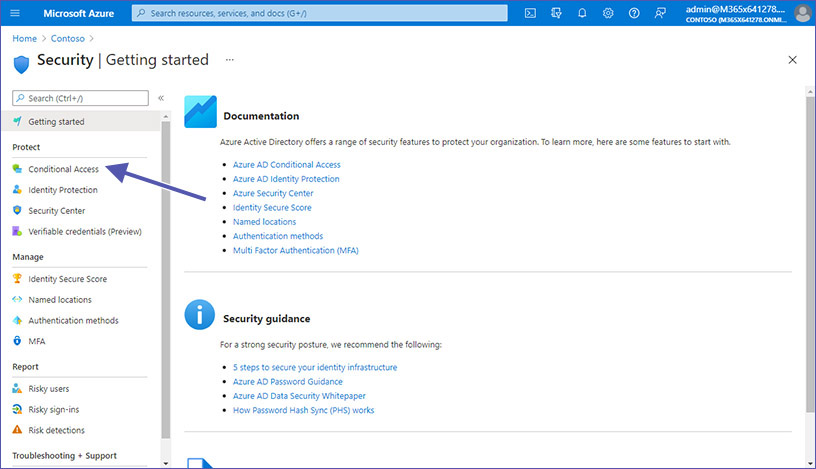
- Go to Mirosoft Entra ID at https://portal.azure.com and select “Protection”.
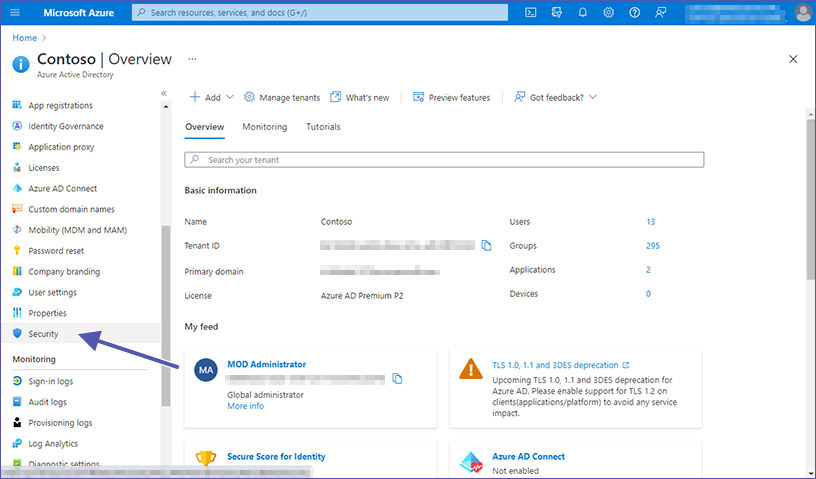
- Select “Conditional Access” and click on “Create a policy”. Set up a policy requiring MFA for sign-ins to Microsoft 365 apps (include Teams, SharePoint, Exchange).
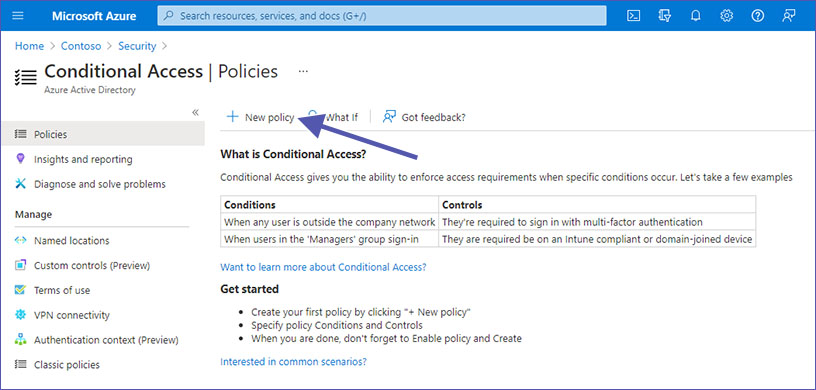
- Block legacy authentication in Entra ID as part of that policy.
- Apply stricter conditions for admins (e.g., stronger grant controls, compliant devices).
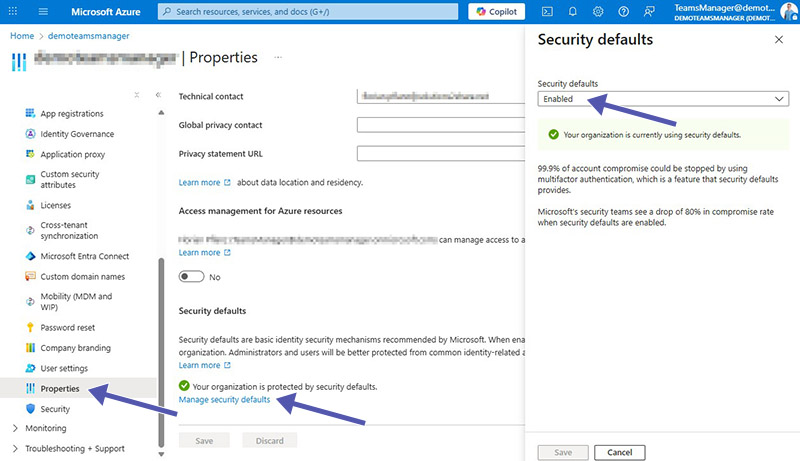
If you’re not ready for full Conditional Access, enable Security Defaults in Entra ID. Open your Microsoft Azure, go to “Properties” and click on “Manage security defaults” at the bottom of the page. Defaults enforce MFA registration and block legacy auth for all users/tenants.
Tip: Want a quick governance & security health check of your tenant? Book a Teams Manager demo to see standardized templates, naming, lifecycle, and approval flows in action.
2. Are Microsoft Security Defaults enough?
Security Defaults provide a base layer (MFA registration, legacy auth blocking). They’re good if you want quick wins or you’re on free Entra ID. But if you have complex scenarios (guest access at scale, exempted service accounts, location/device conditions, admin exceptions), use Conditional Access.
Security Defaults are fine for small tenants, limited risk appetite or if you have no premium licenses yet. Use Conditional Access for premium licenses, regulated industries, granular controls or phased rollouts.
Unified MFA registration: With Security Defaults, users get a 14-day window to register for MFA after their first interactive sign-in.
Managing many guest users and exceptions? External User Manager adds guardrails to guest onboarding and recertification, ideal when Conditional Access grows.
2.1 Who can have access?
Microsoft has made security defaults available to every organization. The primary purpose is to ensure that every organization has a basic security level enabled with no extra cost. For protecting all Microsoft users, security defaults are rolled out to new tenants created by, well, default.
2.2 Who can benefit from Security Default settings?
- Organizations looking to increase security posture in a quick and easy way without diving too deeply into Microsoft Teams security settings.
- Organizations with the free tier of Azure AD licensing still have access to Security Defaults.
2.3 In which case should you rather use Conditional Access instead of Security Defaults?
- Organizations already using Conditional Access policies to bring signals together, to enforce existing organizational policies or to make decisions should not go with security defaults.
- Organizations with complex security needs, we suggest you consider Conditional Access as the possibilities are much more varied.
- Organizations using Azure Active Directory Premium licenses probably have too complex security requirements as well and should rather use Conditional Access.
You can find more information on Security Defaults in Microsoft Docs.
2.4 How can I implement unified MFA registration?
With Security Defaults you can enfore that each user in your tenant needs to register for MFA (multi-factor authentication) in the form of Entra ID MFA.
Users get a timespan of fourteen days to register with Entra ID MFA by using the Microsoft Authenticator app. If the fourteen days have passed, the user won’t be able to log in until the registration is completed.
The user’s countdown to the fourteen days starts after the first interactive login after activating security defaults.
Maintain control over your data by easily managing guest users with External User Manager.
3. How can I set up ATP / Advanced Threat Protection (now Microsoft Defender for Office 365)?
Two additional protection layers can easily be added with Microsoft’s advanced threat protection. You can find these settings in the Microsoft 365 Defender portal, directly at https://security.microsoft.com/safeattachmentv2.
- Defender for Office 365 for SharePoint, OneDrive, and Teams (file scanning/time-of-click protection context)
- Safe Documents (cloud analysis of Office docs opened from Protected View/Application Guard)
- Here you need to open the “Global Settings”.
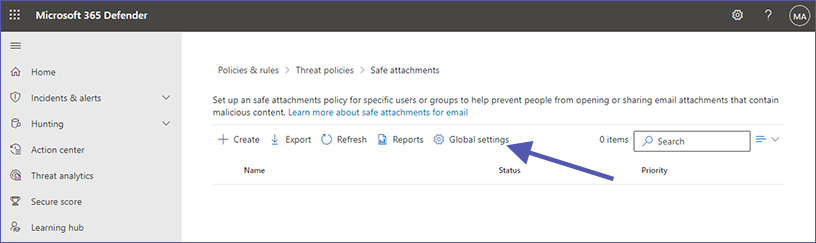
One part of ATP is to enable Defender for Office 365 for SharePoint, OneDrive and Microsoft Teams. The second part is turning on Safe Documents for Office clients.
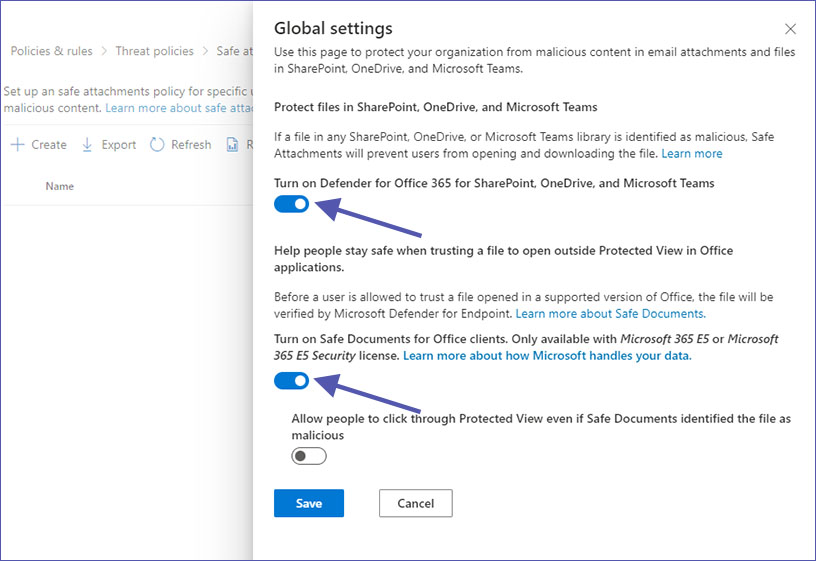
Both Defender and Safe Documents protect your organization from malicious email attachments and files in MS Teams, OneDrive and SharePoint. Defender verifies contents before allowing users to ‘trust’ opened files, while Safe Documents prevents users from opening and downloading suspicious files in the first place.
4. Where can I configure DLP / Data Loss Prevention for Teams chat and channel messages?
Another way to enhance security in your organization is to use data loss prevention policies for Microsoft Teams chat and channel messages.
DLP for Teams is managed in the Microsoft Purview Portal at https://purview.microsoft.com under “Solutions” and “Data Loss Prevention”.
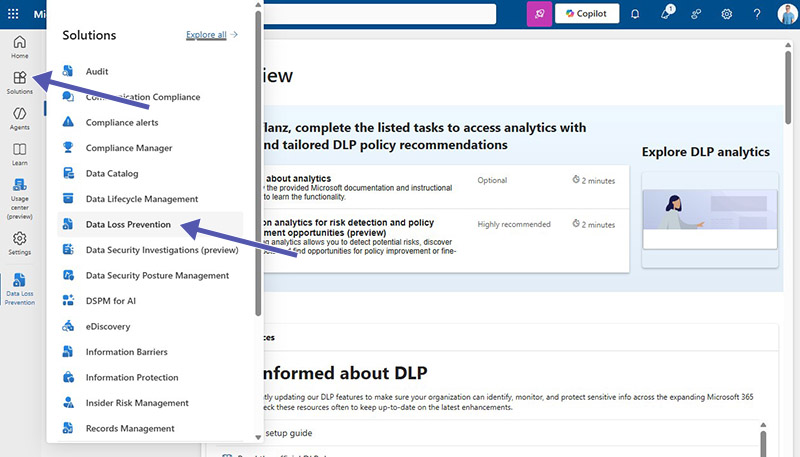
DLP policies prohibit users from sharing sensitive content with guest users (external users).
You can add Teams chat and channel messages as a location to new or existing DLP policies, alongside Exchange, SharePoint, and OneDrive. Policies can block or warn on sharing sensitive info (e.g., personal IDs, payment data) and can auto-delete offending messages.
In order to add Microsoft Teams to existing Data Loss Prevention policies, select the policy you want to edit and click on “Edit” next to “Locations”. Then activate the slider for Teams chat and channel messages.
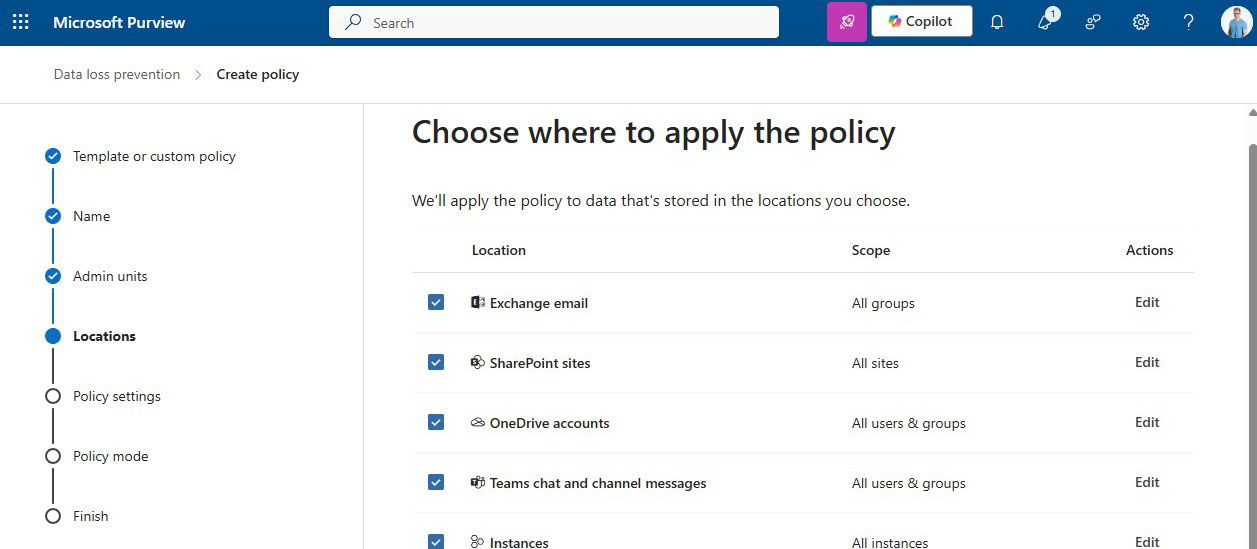
Creating a new Data Loss Prevention policy is easy as well. In the overview screen, click on “Create a policy”, then select the kind of information you want to block, add the locations. In addition to Microsoft Teams chat / channel messages, you can also select Exchange email, SharePoint sites and OneDrive accounts.
Typical setup:
- Choose a built-in template (e.g., EU PII, financial data) or define custom sensitive info types.
- Add Teams as a location; scope by users/groups if needed.
- Decide on user experience (block, block with override + justification, or policy tips only).
Data Loss Prevention can also be used to prevent guest users from accessing SharePoint documents with sensitive information. If external users are part of your processes, pair DLP with External User Manager to ensure guest access follows approvals and expiry policies (recertification, owner responsibility).
For more details on DLP, check out this Microsoft doc on Data Loss Prevention in Microsoft Teams.
5. What is Safe Links for MS Teams?
Safe Links is part of the Microsoft Defender for Office 365 package. It is a feature that provides time-of-click URL scanning and rewriting to protect against malicious links used in phishing attacks or similar, not just in emails but also in Microsoft Teams and other M365 apps. Safe Links protection for links in Teams works in conversations, group chats and channels.
The controls for Safe Links can be found in the Microsoft 365 Defender portal at https://security.microsoft.com/:
- Go to “Email & collaboration” and then to “Policies & rules”.
- Select “Threat Policies” and then “Safe Links”.
- Ensure “Apply to Microsoft Teams” is enabled.
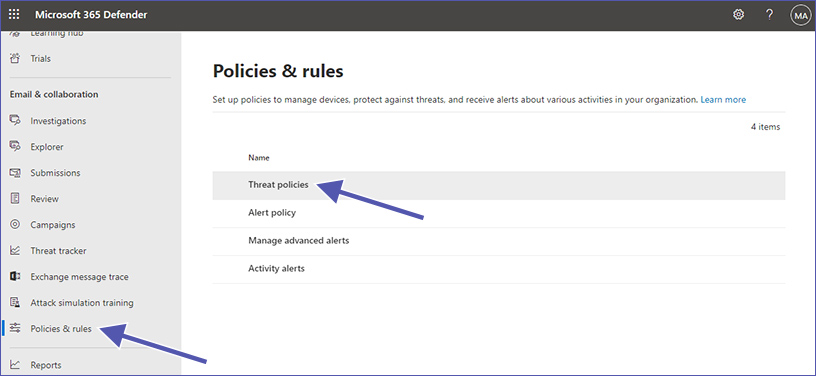
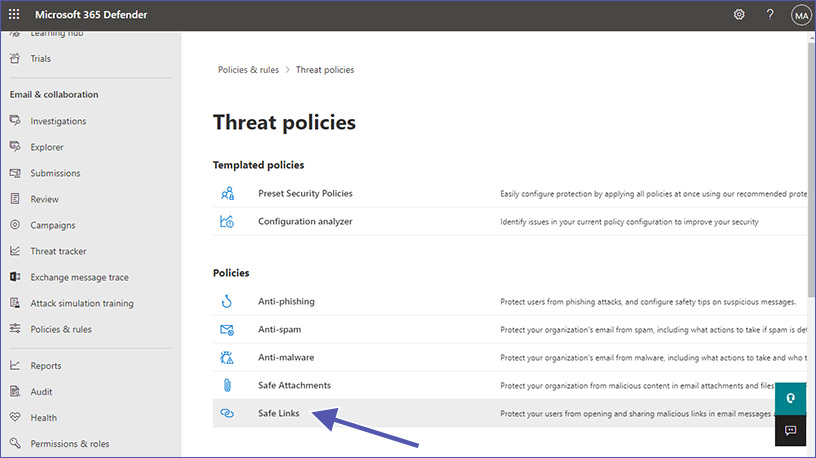
Safe Links for Teams lets you decide what should happen with URLs that are unknown, suspicious or malicious.
Possibilities include:
- You can configure a list of specific URLs that should be blocked before opening the website.
- For malicious links, a warning page will be displayed and stop the user from opening the website.
- Downloadable files can be checked before the download.
Safe Link protection for Microsoft Teams in Safe Links policies can be enabled or disabled accordingly. By clicking on On to Select action for unknown or potentially malicious URLs with Microsoft Teams from the setting. The highly suggested value is On.
Safe Links policies which apply to links in emails can also be applied to links in Teams:
- Real-time URL scanning for suspicious links and linked files
- Tracking of user clicks is prevented
- Users are not allowed to open the original URL
This is how Safe Links works for links in Microsoft Teams:
- Users open Teams.
- The system checks if the organization uses Microsoft Defender for Office 365, and if the user in part of a Safe Links policy with activated protection for MS Teams.
- As soon as a URL is clicked in chats, channel posts or tabs, Safe Links checks the link.
Here you can find the full Microsoft doc on Safe Links settings for Microsoft Teams with lots of additional information.
At the moment (November 2025), Microsoft is rolling out Malicious URL (Link) Protection for Teams (article at Microsoft Learn) that surfaces clearer, built-in warnings in chats, channels, and meetings (public preview/GAs per roadmap). For now, we suggest keeping Safe Links in place and evaluating the new Teams link protection as it becomes generally available.
6. How can I use Defender for Cloud Apps (formerly Cloud App Security)?
Microsoft Defender for Cloud Apps – formerly Microsoft Cloud App Security – is a big step toward more security for your Microsoft Teams environment. Just like Safe Links, it is also part of the Microsoft Defender package.
Defender for Cloud Apps can be used to configure special authentication protocols, policies, warnings and reports for lots of different scenarios.
It adds session controls, app discovery, and policy-based access for SaaS apps, including Conditional Access App Control scenarios (e.g., monitor, block download, require label). The service was renamed from Cloud App Security; the legacy portal address https://portal.cloudappsecurity.com still redirects, but admin work increasingly consolidates under Microsoft 365 Defender.
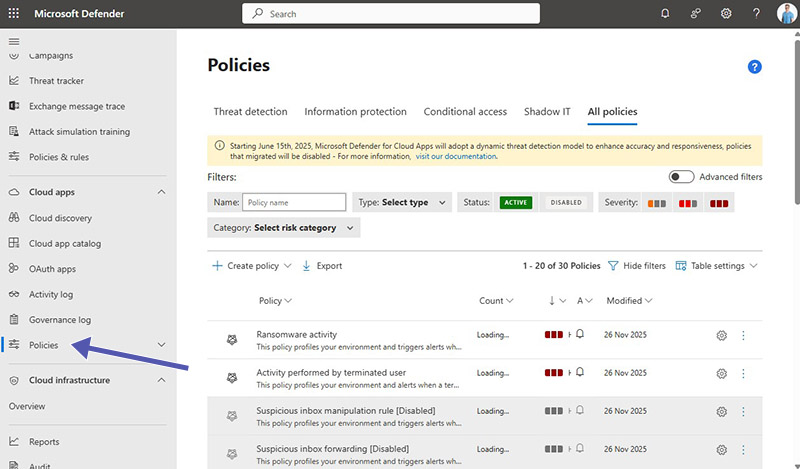
Where it fits:
- Govern risky sessions for guest/external users.
- Apply session policies (e.g., block download of sensitive files).
- Add analytics and alerts for anomalous activity.
Cloud App Security is a whole topic all by itself and to discuss it in detail would go beyond the scope of the Microsoft Teams security settings in this article.
We recommend starting with Microsoft docs providing an overview of Microsoft Cloud App Security and a rundown on the options for protecting apps with Conditional Access App Control.
Quick comparison: which control solves which risk?
| | Primary risk addressed | Where to configure |
| --- | --- | --- |
| MFA (via Conditional Access) | Account compromise, password spray/phishing | Entra admin center -> Conditional Access |
| Security Defaults | Baseline identity protection when CA not used | Entra ID -> Tenant properties -> Security defaults |
| Defender for O365: Safe Documents | Malicious Office files opened by users | Microsoft 365 Defender -> Email & collaboration |
| Defender for O365: Safe Links | Malicious URLs in mail, Teams, Office apps | Microsoft 365 Defender -> Threat policies -> Safe Links |
| Purview DLP for Teams | Sharing of sensitive data in chat/channels | Microsoft Purview -> Data loss prevention |
| Defender for Cloud Apps | Risky SaaS sessions, download control, app discovery | Defender for Cloud Apps / M365 Defender |
Where our governance products fit (and why customers choose us)
Teams Manager is your Microsoft Teams governance tool for templates, approvals, naming conventions, lifecycle/expiry, and owner accountability. This reduces risk from uncontrolled team creation and stale access. To see it in action, book a free demo here.
External User Manager provides guest user governance throughout Microsoft 365 with standardized onboarding, approval, periodic access reviews, and automated cleanup for orphaned or inactive guests. Ideal with DLP/Conditional Access. Book a free demo to see it live.
This concludes our third and last article about Security in Microsoft Teams. Take a look at Part 1, where we went over the settings for collaboration options in Microsoft Teams, or Part 2 with specific configurations of compliance in Microsoft Teams with security in mind.
When we talk about Microsoft Teams Security settings, there are multiple options Microsoft offers to prevent different issues. Here we have tried to cover every topic that could be of help. While we did not go into much detail on some specifics, please do contact us for more information on how to secure your Teams environment.
Our mission is to build apps for Microsoft Teams to make your live easier and your security better:
- Teams Manager improves Teams governance with team templates, lifecycles, naming conventions and more.
- External User Manager helps you with Microsoft 365 guest management for better Microsoft 365 security.