
Creating a new team in Microsoft Teams is easy and can be done with just a few clicks.
However, please note that it depends on your organization‘s settings whether users are allowed to create new teams at all. To learn more about controlling the Teams creation process in Microsoft Teams, we recommend reading these blog posts:

Why do IT admins care about governance when creating new teams?
If everyone can create teams without rules, most tenants run into the same issues:
- Too many teams (“Teams sprawl”) and duplicate workspaces
- Inconsistent names and unclear purpose
- Missing ownership (no responsible owners, abandoned teams)
- Harder compliance and auditing because structure is not standardized
This is why Microsoft Teams creation governance matters: you want a process that lets users move fast, but still enforces policies, naming conventions, and a clear owner model.
What is a controlled Teams creation workflow?
A controlled Teams creation workflow is a governed provisioning process where new teams are created based on predefined standards:
- Users request a team with the right context (purpose, sensitivity, department, etc.)
- An approval step ensures relevance and compliance
- Teams are created from templates (channels, apps, settings)
- Governance rules are applied consistently (naming, classification, lifecycle)
In practice, many IT teams either:
- Disable team creation Microsoft 365 (hard stop), or
- Implement a Teams governance tool for template-based provisioning in Teams and approvals (guided creation).
How to create a new team in Microsoft Teams
Time needed: 2 minutes
Here is a step-by-step guide on how to create new teams in Microsoft Teams.
- Open Microsoft Teams Open Microsoft Teams on your computer, in the browser or your smartphone.
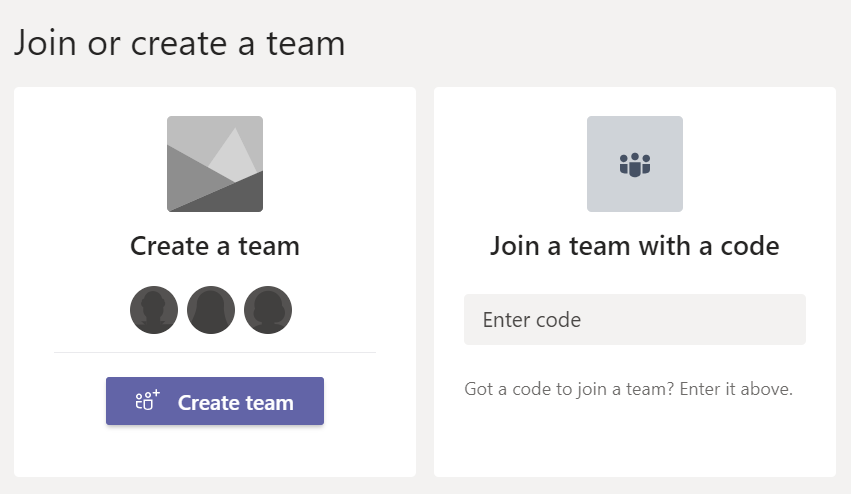
- Click “Join or create a team” At the bottom left, below the Teams list, click on the option to “Join or create a team”.
- Create a team Here you can either “Create a team” or “Join a team with a code”. In this case, click on “Create a team”.
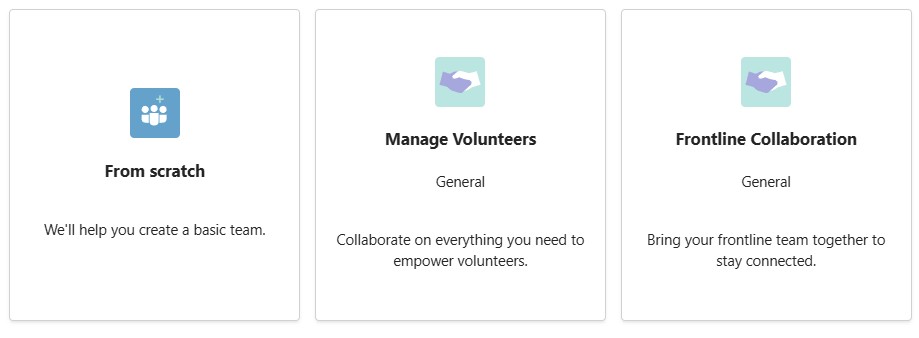
- New team from scratch or from template Now you can choose whether to create the team from scratch, or based on a template provided by Microsoft. If you base your new team on an existing one or a template, you will receive pre-set channels and apps.
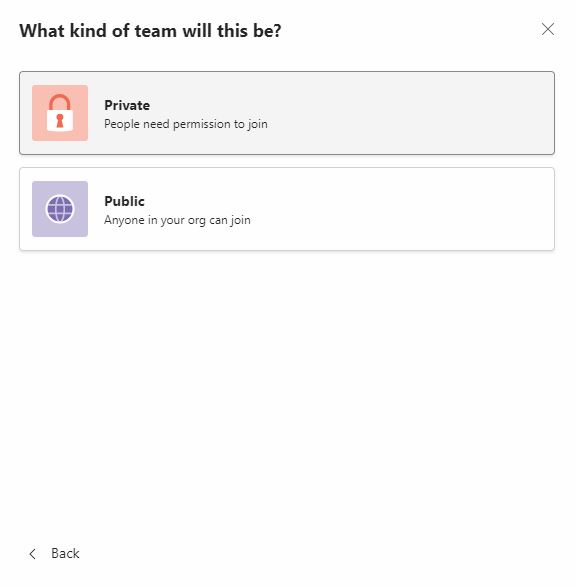
- Private or public team Select whether you want to create a new private or public team or even an org-wide team.
- Enter details about the team Now you just need to enter the details for the new team: a name and a description. Make sure to use a name that gives other users a good impression of what kind of content they can find in your team.
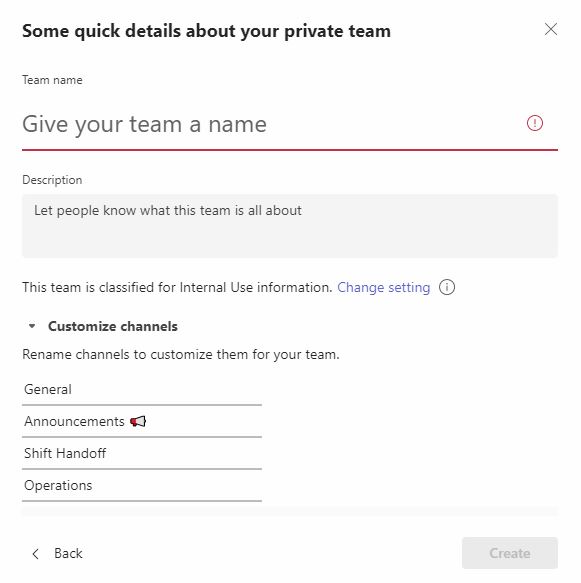
- Click “Create” Complete the teams creation process by clicking on “Create”.
- That’s it! You now know how to create new team in Teams. It really is this easy – you have now created a new team!
What are the limits of “native” Teams creation for enterprises?
Native creation is fast, but it does not cover:
- A consistent workspace structure across departments
- A standard set of channels/apps/tabs
- A request-and-approval flow
- Enforced naming conventions and metadata
- Documented governance decisions for audits
If you’re looking for Teams Manager provisioning vs native Teams creation, the key difference is not “Can it create a team?”. It’s whether the creation process is standardized and controlled.
When should you disable Teams creation and implement governed provisioning?
Option 1: Disable Teams creation in Microsoft 365 (hard stop)
Go for this option if you must stop uncontrolled growth immediately and accept side effects (more manual requests, workarounds). The common approach disables Microsoft 365 group creation broadly, not only Teams.
Option 2: Controlled team creation workflow (guided creation)
Implement this if you want to keep Teams usable for the business while enforcing standards via Teams creation approval workflow and template-based provisioning in Teams.
Comparison table: native Teams creation vs. controlled provisioning
| Method | Good for | Typical downsides |
| --- | --- | --- |
| Native Teams creation (everyone) | Speed, low friction | Teams sprawl, inconsistent structure, unclear ownership |
| Native + creation restricted/disabled | Stopping growth | Manual work, user frustration, workarounds |
| Controlled provisioning with a governance tool | Standard templates, approvals, policy enforcement | Requires setup and a tool license |
How Teams Manager supports controlled creation of new teams
If you want to move beyond native Teams creation and set up a controlled workflow, Teams Manager gives you exactly that.
With Teams Manager, IT admins can define template-based provisioning in Microsoft Teams with approval workflows, naming conventions, and predefined settings. New teams are created in a standardized way, ownership is clear from day one, and governance rules are applied automatically. This reduces manual admin work and prevents Teams sprawl.
See how Teams Manager supports Microsoft Teams provisioning with governance built in: Book a free, personal demo today!