
Why do organizations lose control over Microsoft Teams?
Implementing Microsoft Teams is relatively easy. The problems and complexity comes with the growth, as more and more employees adopt the new tool and start exploring its features. Too many teams, inconsistent naming, unclear ownership, and missing lifecycle rules create chaos over time. IT admins often struggle to answer basic questions like:
- Which teams are still active and needed?
- Who owns them and why were they created?
- How can we enforce structure and compliance at scale?
That’s exactly where Teams Manager comes in. Teams Manager is an app for Microsoft Teams management that helps companies standardize, automate, and govern Microsoft Teams, from creation to archiving.
In this article, I’ll walk you through all Teams Manager features, explain how they solve real governance challenges, and provide an infographic summarizing everything at a glance.
What is Teams Manager and who is it for?
Teams Manager is a Microsoft 365 governance app built for IT administrators, governance leads and compliance officers who want to keep their Teams environment secure and automated. It integrates natively into Microsoft Teams and provides structure through templates, naming conventions, approval workflows, lifecycle management, and more. And all in one place.
Whether you manage 50 Teams or 5,000, Teams Manager helps reduce manual admin work, enforce company-wide standards, and maintain consistent governance without slowing down your users.
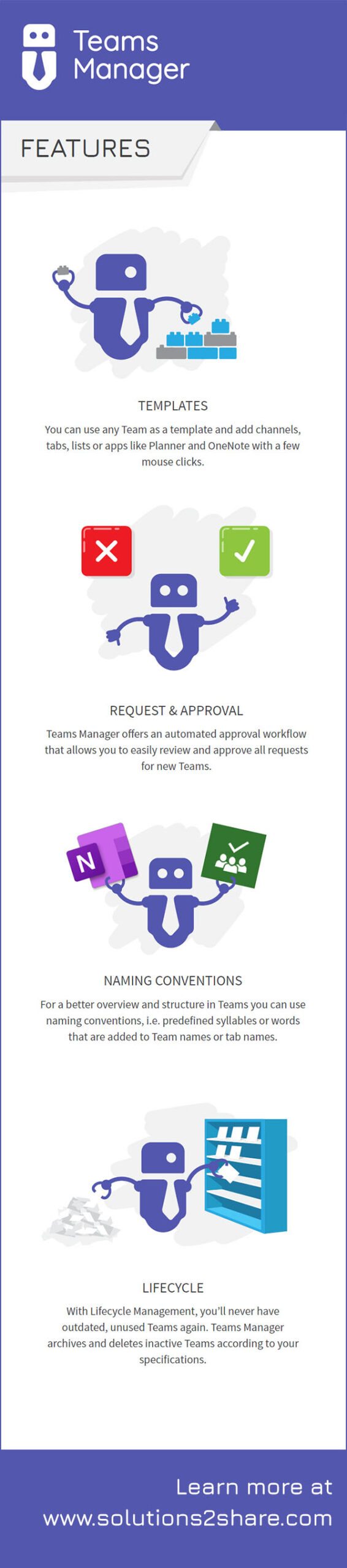
Getting to know a new tool and understanding its features and limitations can be hard for IT admins, especially for platforms like Microsoft Teams with so many apps available. This is why we created a simple, fun infographic to show you the most important features of Teams Manager:
- Template creation for teams or groups
- Naming conventions
- Lifecycle management
- Request & approval process
- Custom metadata
- Inclusion of old, existing teams
- Workflows and automations
Detailed instructions for your first steps with Teams Manager can be found here: Teams Manager Basics
Which problems does Teams Manager solve?
Many organizations struggle with:
- Uncontrolled team creation leading to sprawl and duplicates
- Missing naming conventions that make it hard to find or identify teams
- Inactive or orphaned teams that remain long after projects end
- Lack of visibility into who owns which team
- Manual provisioning processes that slow down IT operations
Teams Manager addresses these issues by offering automation and control, without limiting end-user productivity.
What features make Teams Manager a complete governance solution?
Let’s look at the most important features that make Teams Manager one of the leading governance tools for Microsoft Teams.
1. What are Teams and M365 Group templates?
Templates define how new Teams or Microsoft 365 groups are created: including channels, tabs, apps, files, and even folder structures.
With Teams Manager you can:
- Create and manage custom templates for departments, projects, or clients
- Include predefined channels and apps (Planner, OneNote, SharePoint, etc.)
- Reuse templates across multiple departments
- Automatically assign metadata (e.g., department, project type)
Why it matters: Templates save time, ensure consistency, and help prevent Teams chaos by standardizing setup across your organization.
Read this blog post to find out how Microsoft’s own templates compare to Teams Manager templates.
2. How does a request & approval process simplify governance?
In many organizations, anyone can create new Teams, leading to hundreds of unnecessary ones. Teams Manager introduces custom approval workflows that let you define who can approve or reject new Teams requests.
- Set approvers by department, region, or management role
- Track requests and approvals directly inside Microsoft Teams
- Prevent duplicate or non-compliant Teams creation
This ensures new Teams are only created when truly needed, without slowing down collaboration.

3. How do naming conventions keep your Teams organized?
Without clear naming rules, teams become inconsistent and confusing. With Teams Manager, IT admins can define automated naming conventions that apply when a new Team is created.
For example:
- Department prefix + project name + year
- Country code + business unit + customer name
This guarantees a unified naming structure across all Teams and, especially in large environments, makes searching and filtering easier.
4. How does lifecycle management for MS Teams and M365 prevent inactive Teams?
Inactive Teams are one of the biggest governance challenges. Over time, projects end but the corresponding Teams remain available, storing outdated content and permissions.
Teams Manager solves this with automated lifecycle rules:
- Define how long Teams remain active
- Send notifications to owners before expiration
- Archive or delete inactive Teams automatically, or expand their lifecycle if needed
- Keep a complete audit trail for compliance
5. How can you use metadata for Microsoft Teams and M365 groups for structure and automation?
Metadata lets you add key information to each Team, such as:
- Department
- Project type
- Confidentiality level
- Responsible manager
- and many more
These metadata values are collected automatically during teams creation. They can trigger automation rules, filter reports, or define lifecycle policies, turning Teams Manager into a powerful governance engine.
6. Manage old teams as well
Teams Manager’s features are not only helpful for new teams or groups: You can easily “migrate” old existing teams into your new, managed environment. Check out this blogpost about applying governance policies to unmanaged teams!
7. How does Teams Manager support multi-language environments?
If your organization operates globally, you can manage templates, naming conventions, and policies in multiple languages. Teams Manager supports multi-language configurations to ensure a seamless experience for international teams.
8. What insights and reports are available?
Teams Manager provides clear dashboards and reports that give you a full overview of:
- All active and inactive Teams and owners
- Lifecycle status
- Governance compliance metrics
These insights allow you to proactively manage your environment and save hours of repetitive manual work.
Use Case: How one company reduced Teams chaos by 60%
A global photovoltaic construction company struggled with uncontrolled Teams growth, with no clear ownership over many inactive teams.
After implementing Teams Manager, they:
- Introduced templates for standard project structures
- Enforced naming conventions
- Implemented lifecycle rules to archive inactive Teams
- Reduced manual admin tasks by 60%
The result: a consistent, secure, and well-governed Microsoft Teams environment; with less effort and more control.
Read the full customer story here!
Why choose Solutions2Share?
Solutions2Share has been developing governance tools for Microsoft 365 and Teams for over a decade. With more than 60,000 installations and 1.5 million users worldwide, our apps help organizations simplify complex Microsoft 365 environments through automation and compliance.
Teams Manager is trusted by companies across industries – from finance to manufacturing – to keep their Teams environments structured, secure, and scalable.
Simplify your Microsoft Teams governance today
Managing Teams manually is time-consuming and prone to errors. With Teams Manager, you gain automation, control, and compliance – without restricting collaboration.
Book a free demo today and see how you can standardize, automate, and simplify your Microsoft Teams governance with Teams Manager.
Want to keep control of your MS Teams infrastructure and prevent unchecked growth?